When processing returns, handling how you take back in that returned inventory can get complicated. Some inventory may be fit to go straight back into Inventory, like an unopened product, while others may need to be processed differently, like the filter that was opened and installed.
This is where Pending Returns Queue comes in! This queue allows you to determine what should happen to SKUs after accepting them back as a return.
Go to Operations / Sales / Pending Returns Queue
Before anything shows up in the Pending Returns Queue, you need to process a Return. You will still process that Return the way you always have.
Once you have completed the LOU Retail POS transaction or you have Invoiced the Return Order, SKUs in that transaction will appear in the Pending Returns Queue.
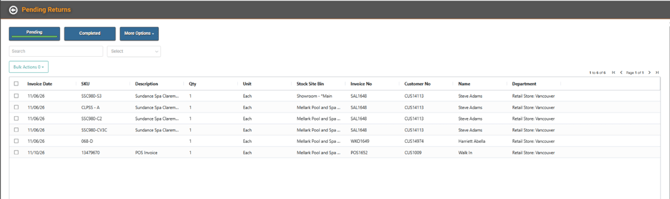
When you arrive on the Pending Returns page, the Pending tab is your default view. The SKUs listed here are from completed returns. They are in your possession, you can see the Stock Site to which they were received upon Return, but these SKUs are not Available to be sold. They are waiting for you to determine what should happen next.
While many returns may be new, unused items that you can simply return to available Inventory to sell, others may be defective items or broken items that require a different approach.
This Pending Returns page allows you to act according to your business processes. When you click the Actions Link on a line item, you have a few options. Select Move To if you want to move the SKU into Inventory for sale or Disposal because it cannot be sold. Select one of the profiles if you want to research additional information about this SKU or transaction.
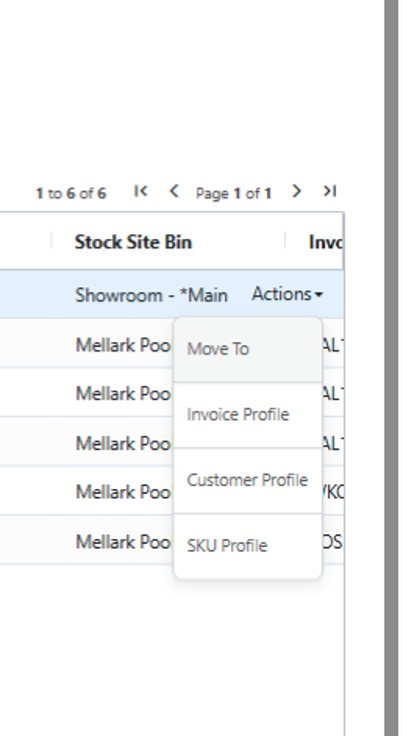
Move To
If the SKU can be sold again, you can click Move To, select Move To Inventory, and select the Stock Site to which you’d like to move the SKU.
TIP! If you take in damaged or defective SKUs that you are able to repair in house and sell as refurbished, you may consider creating a Stock Site designated for those SKUs. That way they are easily identifiable and you can avoid selling a SKU that isn’t ready to be sold yet.
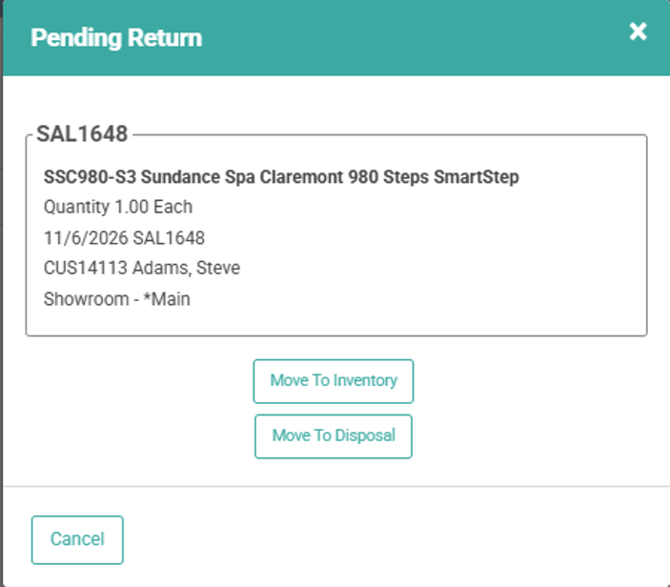
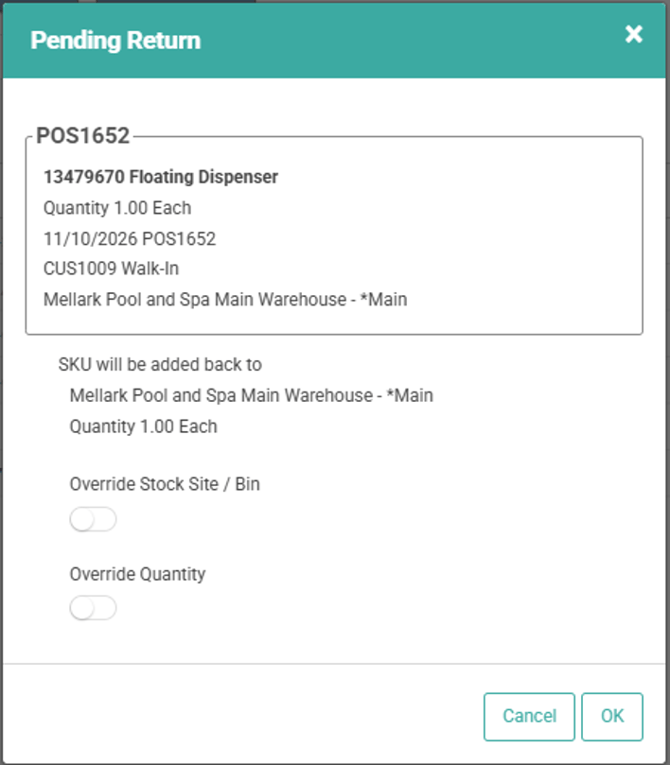
When you choose Move To Inventory, the pop-up will give you the option to toggle an Override on for the Stock Site/Bin as well the Quantity. If you do not toggle either of those and make a selection, the Inventory will be added back in the Quantity, and to the Stock Site, indicated.
When you choose Disposal, LOU will ask you to confirm and then remove the SKU from Inventory and the Pending Returns Queue. This item will not be available for sale in any Stock Site.
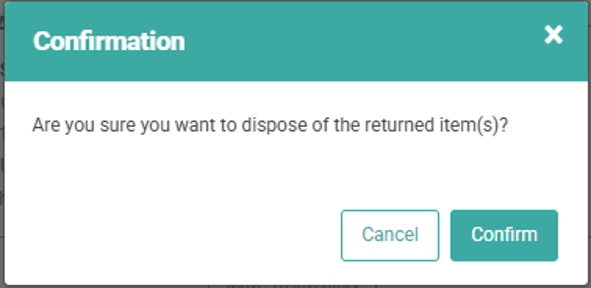
REMEMBER! Once you have disposed of a SKU, you cannot undo this action. You must complete a Stock Adjustment if you want to bring that quantity into Inventory. Keep in mind Stock Adjustments are transactions and performing one will impact the General Ledger.
SKU Quantities
The SKU Quantities box on the Inventory Search page has a new SKU Status to reflect those items in the Pending Returns Queue. While a SKU in the queue and not available for sale, it is still reflected as being in your possession as a Return in the Stock Site corresponding with the Return Order or Invoice.
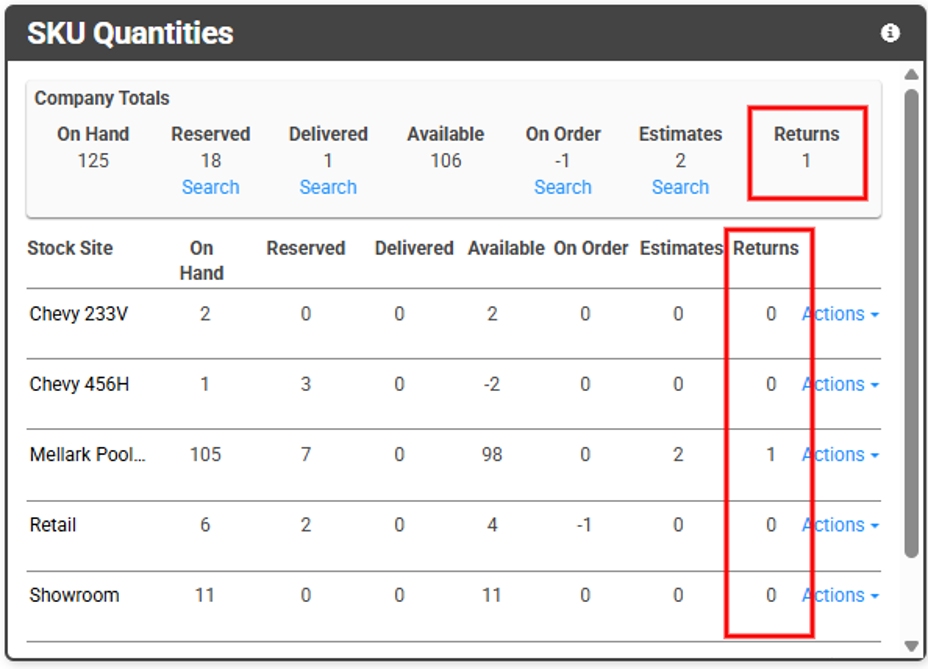
Once you use Move To, the SKU Status will change to Available in the Stock Site you selected.
IMPORTANT! While the SKU is in the Pending Returns Queue it is not counted in the Inventory Valuation.
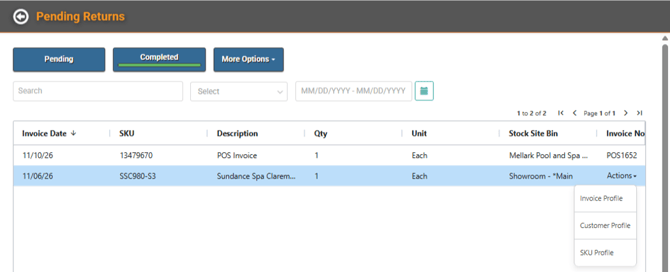
Completed
You can see your completed Returns by going to the Completed tab. On each line item, you can use the Actions link to quickly navigate to the Invoice, Customer, or SKU Profile for that item.