
LOU allows you to set the price of Inventory SKUs based on either a Fixed Price or a Profit Margin.
For information on Profit Margin, head here.
It is only possible to set one margin on a SKU on the SKU Profile and it is calculated by Cost. However, you may wish to set different Margins on specific transactions. That is where the Margin Maker comes in.
IMPORTANT! Margin Maker can only be used on non-invoiced SKUs with the exception of Trade and Service & Labor SKU Types, on which Margins cannot be set.

Go to Estimates, Sales Orders, or Work Orders
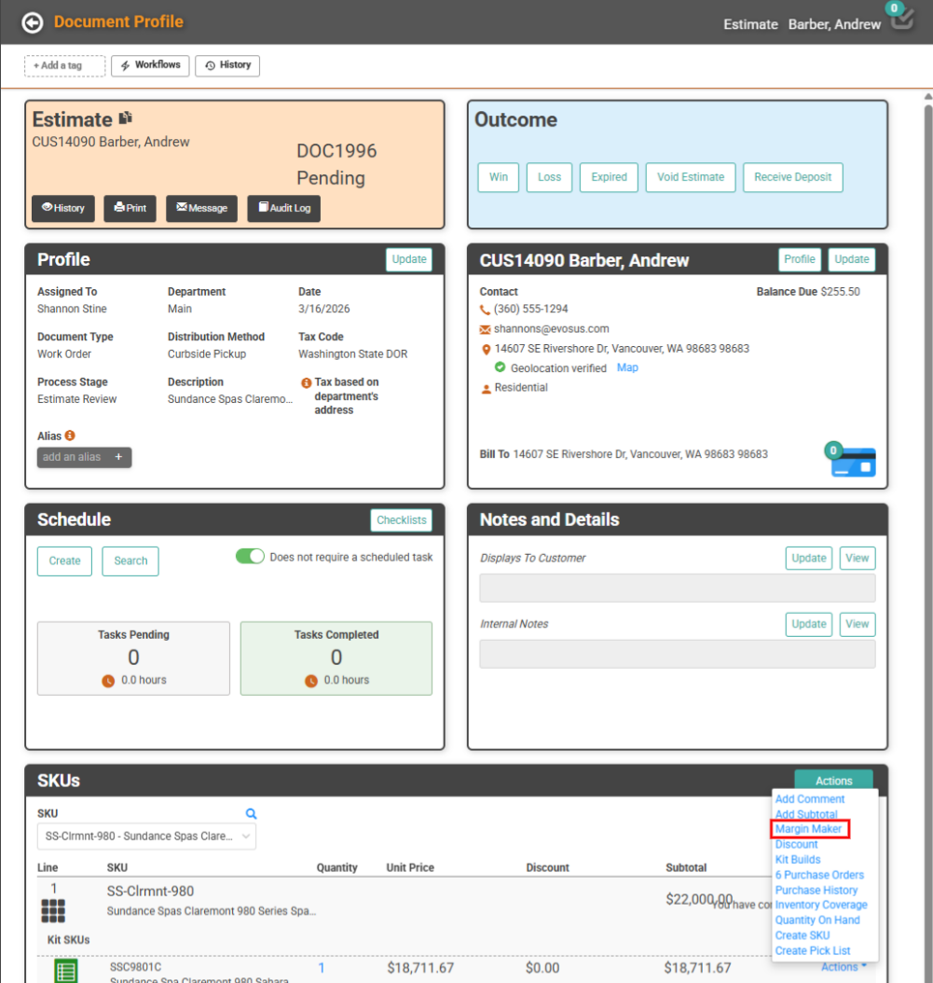
When you arrive on an Estimate or Order profile, you can access the Margin Maker by clicking Actions on the SKU box and Margin Maker.
- Create an Estimate, Sales, or Work Order.
- Add at least 1 SKU that isn’t a Labor or Trade SKU.
- On the SKU box, click Actions / Margin Maker.
If you have SKUs on the Order that cannot be included in the Margin Maker, such as Labor or Trade SKUs, LOU will warn you that not all SKUs can be included and ask if you want to continue.
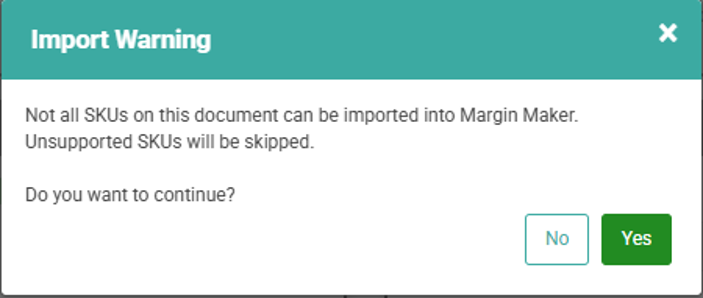
Once you click Yes, you will arrive on the Margin Maker screen where you can begin to create the appropriate Margins for the Estimate or Order.
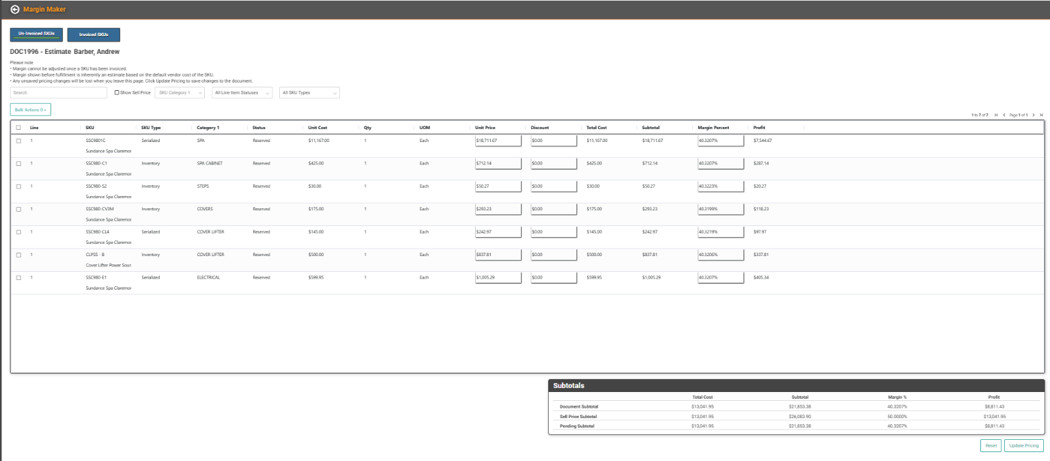
There are two tabs on this page: Un-Invoiced SKUs and Invoiced SKUs.
-
Un-Invoiced SKUs: You can take several actions here, including setting Margins.
-
Invoiced SKUs: This is a read-only page that allows you to view margin info for the SKUs, but you cannot take action.
There are a few ways you can view the page:
-
Search: Use this field to search for a specific line item.
-
Show Sell Price: This adds a column to the grid that will show the SKU’s Default Sell Price from the SKU Profile.
-
Filters: SKU Category, SKU Status, SKU Types
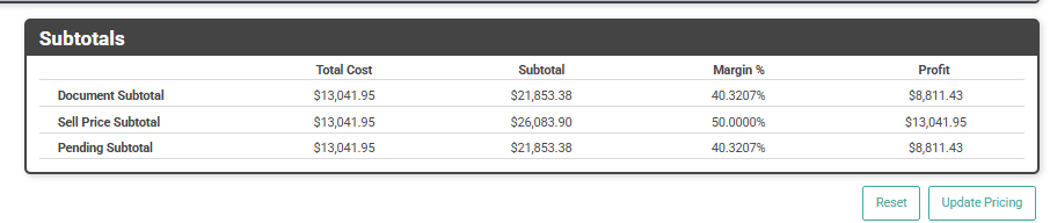
The Subtotals box at the bottom of the screen gives you a few different pieces of information to help you determine whether the changes you’re making will work for you and your Customer.
-
Document Subtotal: This is the subtotal for the Sell Price of the SKUs on the Document minus any SKUs that cannot have adjusted Margins and Taxes.
-
Sell Price Subtotal: This reflects the subtotal based on the SKUs’ Default Sell Price from the SKU Profile.
-
Pending Subtotal: Current Pending (un-Invoiced) Subtotal for the Estimate or Order, minus any SKUs that cannot have adjusted Margins and Taxes.
The Estimate in our example has 7 un-invoiced SKUs on which we can set Margins. The Default Unit Price and Margin Percent are populated based on the Default Vendor. Those two fields along with the Discount field are editable on the screen. As you change the amounts in one of these fields, the other fields will update accordingly.
REMEMBER! None of the pricing changes you make on this page will apply to the SKUs on the Document until you click Update Pricing at the bottom of the Subtotals box. Until then, you can change amount fields until you get the numbers exactly where you want them.
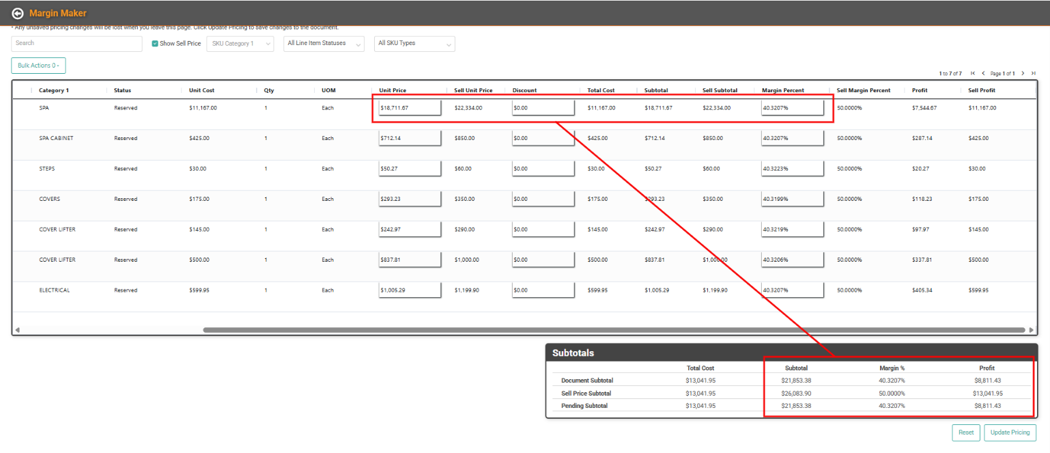
To change a field, click the field and start typing. Click Enter to apply the change. We added an $1100 discount to the top SKU.
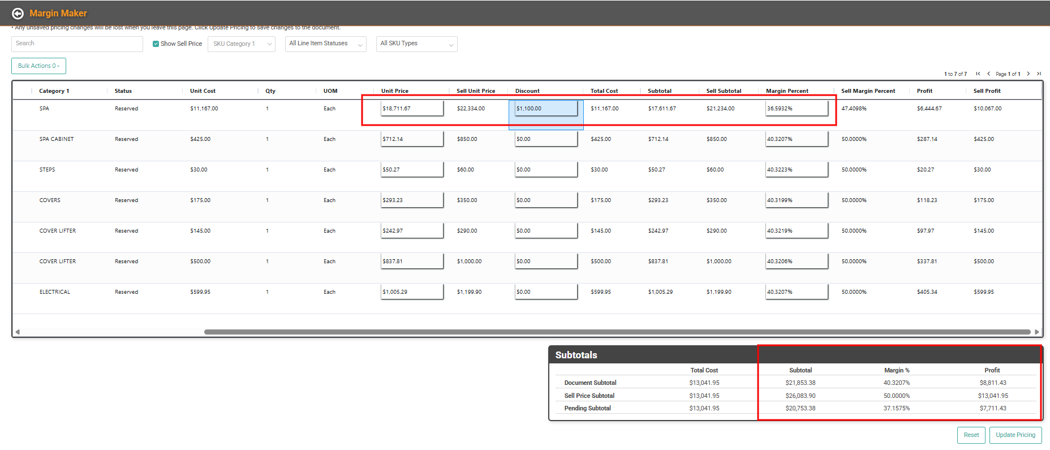
Adding the Discount updated the Pending Subtotal Amounts and you can compare the 3 Subtotal fields to determine whether you’re happy with that change. Continue to change the Amounts for each SKU you want to affect until you are satisfied with the Pending Subtotals.
Once you’re satisfied, click Update Pricing to see these updates reflected on the Document.
IMPORTANT! The changes you make to Unit Price, Discount, and Margin Percent affect the SKUs on the specific Estimate or Order on which you are working only. No changes made on this page will impact the SKU Profile or other Estimates and Orders.