
So you have your LOUcommerce store up and running and the orders are coming in. Where? How? What’s next?
Process Orders and Best Practices
An online store is a whole new segment of business, and it can feel overwhelming to keep up. With a solid business process in place, you can ensure your online business is a success. We’ve got some best practice recommendations to help you create a business process that works for you.
REMEMBER! Every business is different, so these recommendations are intended to help you in creating a process that works for you.
First, let’s look at some of the basics.
Online Order Process Overview
These are the steps that must occur to fully complete an online order:
- Order is placed online
- LOUcommerce sends email to Customer letting them know their order was successful.
- REMEMBER! This is the only automated email the Customer will receive. All additional communication is manual.
- In LOU Web a Sales Order in Pending Status is created with a Deposit associated to the Order for the full price
- The Order is tagged with ecommerce
- In the Admin Panel for LOUcommerce, the Order shows as Pending
- Locate the Order in LOU Web and process
- Pull Inventory
- Pack
- Ship
- Remove the ecommerce tag from the Order so that it doesn’t continue to show in the tag search.
- Invoice the Sales Order
- Deposit applies to the Invoice
- Sales Order is marked as Complete
- Invoice is marked as Complete
- Order in LOUcommerce is marked as Completed
- You send the Completed Invoice to the Customer, letting them know their Order has been filled and shipped.
- Include shipping information such as tracking and estimated arrivals
Order Profile
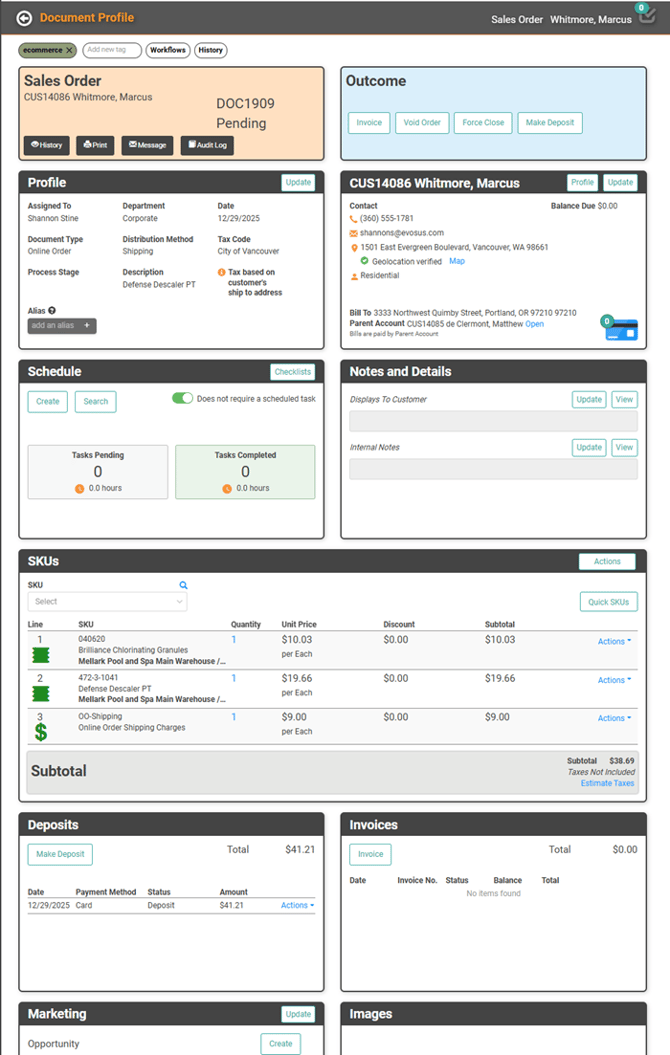
LOUcommerce creates a Sales Order in Pending status tagged with the ecommerce tag. It will be populated with the Department, Document Type, Distribution Method, and Personnel defined in LOUcommerce and the API Defaults. Some additional features include:
- Customer: The Customer information, including Shipping Address.
- Tax Code: The Distribution Method should help define the Tax Code by Destination.
- SKUs: All the SKUs ordered plus the Shipping Trade SKU
- Deposit: A Deposit for the full amount of the Order, including Taxes.
Track Online Orders
Online Orders will come in as Pending Sales Orders in LOU. They will all be tagged with ecommerce. Everyone who will be responsible for these Orders should follow the ecommerce tag and make it a point to check the tag daily. While you can always see them in your Pending Sales Order Search page, using the tag as your “queue” is the most efficient way to stay on top of these Orders.
For those unfamiliar, here is more information about Tags and Workflows.
IMPORTANT! LOUcommerce will create the ecommerce tag automatically. If you choose to create it during your LOUcommerce onboarding process to follow the tag ahead of accepting online orders, it must be exactly ecommerce in all lowercase with no dashes. Otherwise, you’ll end up with duplicate tags and only ecommerce will automatically attach to online orders.
Invoice Order
The Online Order has already been fully paid by your Customer at the time they placed the Order, but the Payment is in LOU as a Deposit, waiting for you to finish processing the Order. Once you have packaged Inventory and prepared for shipping, it’s time to Invoice!
Click Invoice and invoice the full Order.
LOU will mark the Sales Order as Complete, apply the Deposit to the Invoice, and mark the Invoice as Complete. All standard processes that occur when invoicing and receiving payment will happen as expected. Inventory quantities and the GL will be updated.
Additionally, LOUcommerce will mark the Order as Completed in LOUcommerce.
Customer Messages
LOUcommerce will send an email to the Customer when the Order is placed. That is the only message that is sent automatically. Additional messages must be sent manually. We recommend sending the Customer their Complete Invoice with a note letting them know when their order has been shipped and any tracking information available.
- Invoice the Order
- On the Complete Invoice profile, click Message
- The Edit Message pop-up will show the standard Customer Invoice message you send to your Customers. Edit that message to include information about shipping.
- Click Send
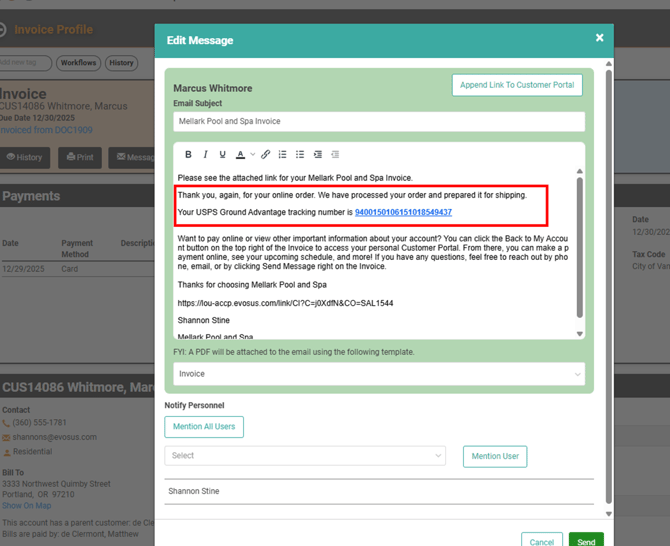
In the example above, we have edited the Invoice message to add the shipping details for our Customer.
IMPORTANT! Do not edit the message in Setup / Foundation / Customer Messaging because that is a global change. You only want to edit the message by following the steps above for each Invoice, not for the global message.
Returns for Online Orders
When a Customer wants to return something they ordered online, you can process a return two ways: through LOU Retail POS or through LOU Web.
IMPORTANT! While LOUcommerce does have a return/refund feature, this should not be used because it will not appropriately sync back to LOU Web to update Inventory, Customer History, and the GL. You should only process returns through LOU Retail POS or LOU Web.
See Online Order Returns for additional information.