
There are a handful of SKU statuses that are updated automatically as Inventory moves through LOU.
There are two statuses that are manually updated through the LOU Service Mobile App or LOU Web: Delivered and Not Needed.
This status means the SKU isn’t in your physical possession, but the Order hasn’t been Invoiced either. There are no financial transactions associated with this status. Once the Order is Invoiced, the financial transactions will post appropriately.
Special Order Items
LOU's Special Order Item (SOI) SKU type is a placeholder SKU that allows you to customize a SKU for a specific Order.
SOIs should not be marked as Delivered on an Order because this will break the SOI receive process that replaces the SOI SKU with a Serialized SKU on the Order once you receive the item.
To ensure the SOI process is not broken, the SKU should not be marked Delivered until it has been updated to the Serialized SKU.
Mark SKUs Delivered in the LOU Service Mobile App
In the LOU Service Mobile App, you can mark a SKU as Delivered by doing the following:
- Navigate to the Task Profile > SKUs
- Locate the SKU line item
- Tap the 3 vertical dots (kebab) on that line item
- Select Set Status
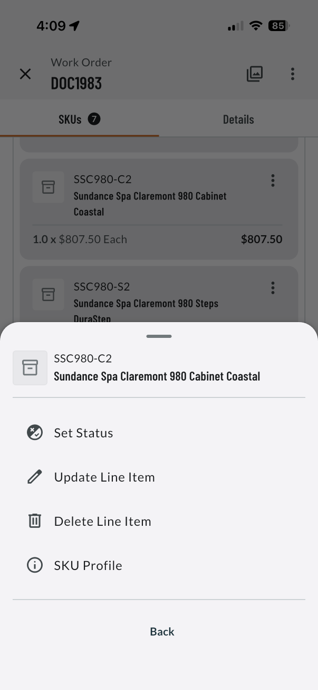
- Toggle Delivered
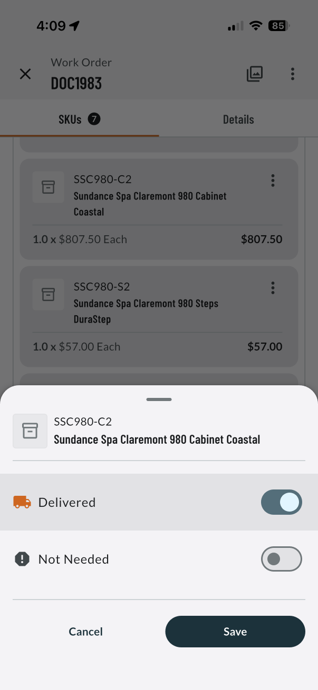
- Tap Save
This will update the status of the SKU from Reserved to Delivered.
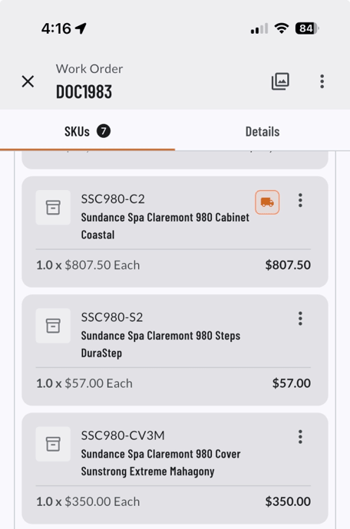
On the Document / Order Profile in both LOU Service Mobile App and LOU Web, the SKU line item will have a little truck icon on it, letting you know that item has been marked as Delivered.
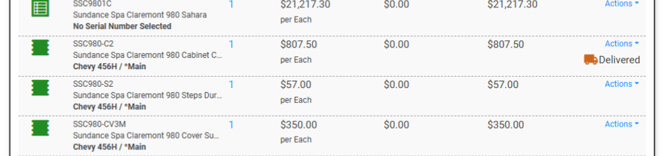
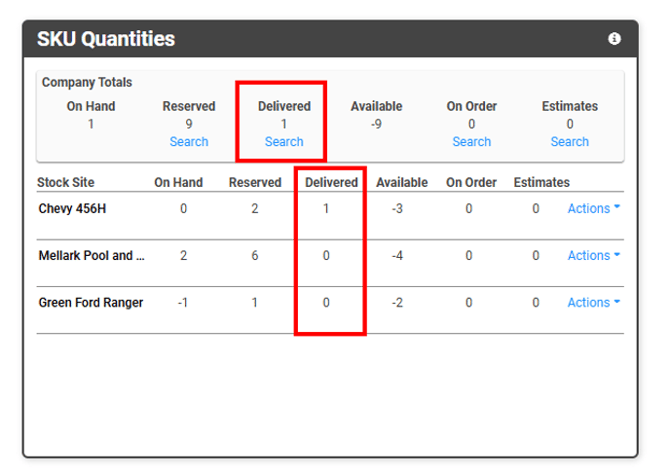
In LOU Web, when looking at the Inventory Search page, the SKU Quantities box for this SKU will list the quantity marked as Delivered alongside the other SKU statuses such as quantity On Hand, Reserved, Available, etc.
REMEMBER!
When you add a SKU to an Order through LOU Service Mobile App, the toggle for Delivered will be ON. If you do not want the SKU added as Delivered, this must be toggled OFF.
Mark SKUs Delivered in LOU Web
You can mark SKUs as Delivered on the Document / Order Profile in LOU Web. All the same behaviors described above apply.
- Go to the Document / Order Profile
- Locate the SKU line item
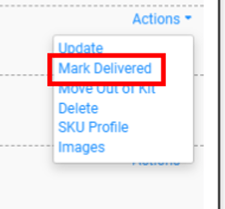
- Click the Actions link
- Select Mark Delivered
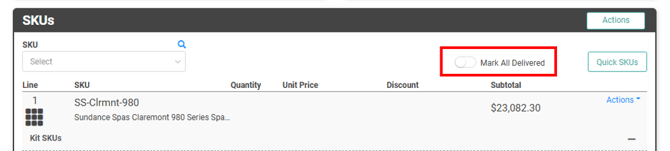
Alternatively, you can mark all the SKUs on the Order as delivered by toggling Mark All Delivered at the top of the SKU box.
Mark Not Delivered
Any time before the Order is Invoiced, you can remove/update the Delivered status by either repeating the steps in LOU Service Mobile App above and Toggling Delivered OFF or locating the SKU on the Order in LOU Web and selecting Actions > Mark Not Delivered.
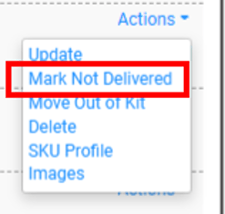
This action, whether performed in LOU Service Mobile App or LOU Web, will remove the Delivered status for the SKU and update it to Reserved.
Not Needed
This status means the SKU was included on the Order, but it wasn’t needed and should not be Invoiced with the Order. There are no financial transactions associated with this status. When the Order is Invoiced, the SKU will remain on the Order marked as Not Needed, it will not be included in the transaction, and the status of this SKU will update from Not Needed to Available in LOU.
IMPORTANT! There is currently no way to mark a SKU as Not Needed in LOU Web.
In the LOU Service Mobile App, you can mark a SKU as Not Needed by doing the following:
- Navigate to the Document / Order Profile
- Locate the SKU line item
- Tap the 3 vertical dots (kebab) on that line item
- Select Set Status
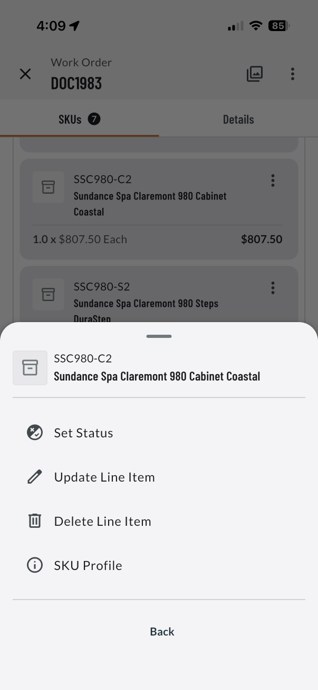
- Toggle Not Needed
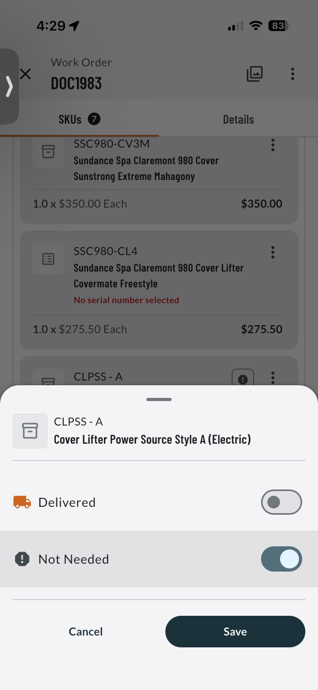
- Tap Save
On the Document / Order Profile in both LOU Service and LOU Web, the SKU line item will have a stop sign with an exclamation point icon on it, letting you know that item has been marked as Not Needed.
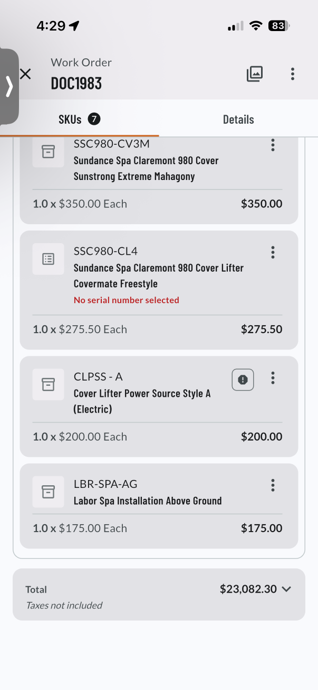

The Not Needed status is not reflected on the SKU Quantities box in Inventory Search page because it leaves the SKU in Reserved Status until the Order is Invoiced when it updates the status to Available.
Remove Not Needed
If you marked a SKU as Not Needed by mistake, the only way to reverse that in the LOU Service Mobile App is to follow the same steps and toggle Not Needed off, then Save.
IMPORTANT! There is currently no way to remove the Not Needed Status in LOU Web.