Tracking Inventory is one of the most important and complex parts of your business.
When you have Inventory moving back and forth from the warehouse and service trucks, it gets even more complex.
That’s where Preflight and Postflight come in!
As your techs get ready for the day, they can use Preflight to quickly create a pick list of the SKUs they will need and then they will use Postflight at the end of the day to quickly transfer unused SKUs back to the Stock Site.
IMPORTANT!
This feature can use barcode scanning to complete. To scan a barcode, the UPC must be saved on the SKU Profile.
Vehicles as Stock Sites
This feature performs Stock Transfers through this process when Vehicles are Stock Sites and will function similarly to Pick Lists and there will not be a Stock Transfer.
When you open the LOU Service Mobile App at the beginning of the day, go to the Inventory (Dashboard).
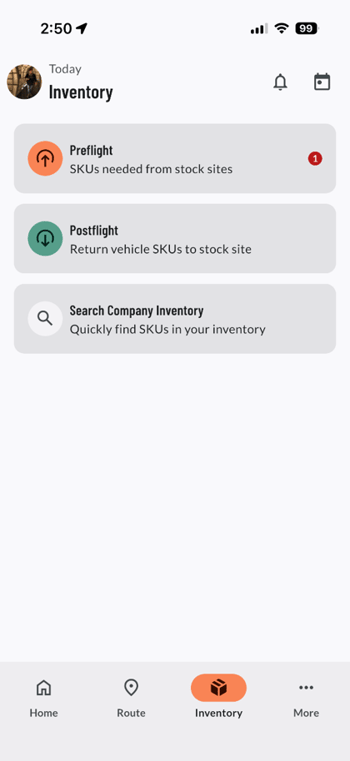
- Preflight will help you quickly create a Pick List of SKUs that you need on your truck for the day.
- LOU will indicate how many SKUs need to be picked. If your Vehicles are Stock Sites, LOU will only suggest those SKUs with insufficient quantities in that Stock Site.
- Vehicle Stock Sites: This process will perform a Stock Transfer between the selected Stock Site and the Vehicle Stock Site.
- Vehicles that are not Stock Sites: This process will function like Pick Lists. No Stock Transfers will occur, but it will help ensure you have the SKUs you need for the day.
- Postflight is the reverse of Preflight and will help create a Pick List of SKUs no longer needed on the truck.
- This requires SKUs to be marked as Not Needed.
- Vehicle Stock Sites: This process will perform a Stock Transfer from the Vehicle Stock Site to a selected Stock Site.
- Vehicles that are not Stock Sites: This will function like Pick Lists. No Stock Transfers will occur, but it will help remove unneeded SKUs from the Vehicle.
Preflight
At the beginning of your day, you can open the LOU Service Mobile App and run Preflight to make sure you grab the SKUs you need to for the day.
- Tap Preflight – there will be a red number on the button indicating how many SKUs need to be picked.
- Select the Stock Site Card from which you want to pick. If you have many Stock Sites, you may need to scroll.
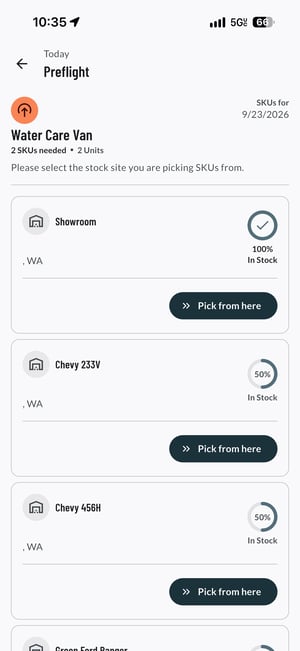
- Select the SKUs you want to pick or use the button at the bottom to pick all SKUs in the list. You can pick SKUs from multiple Stock Sites, if needed. There may be situations where you only want to select certain SKUs from one Stock Site and then return to the previous menu to select a different Stock Site from which to pick additional SKUs.
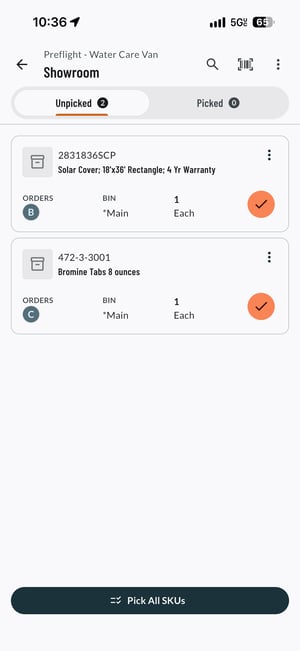
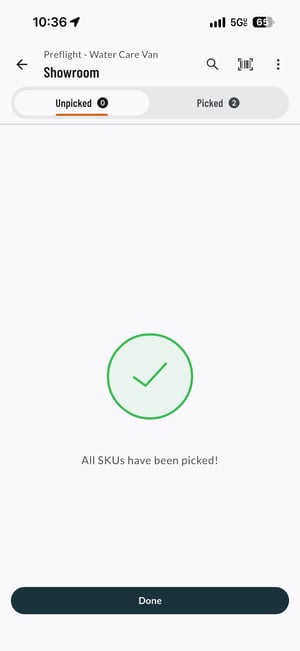
- Barcode Scan: You can use the Barcode icon to open a barcode scanner. This allows you to quickly scan the UPCs for the SKUs you wish to add instead of tapping each SKU individually.
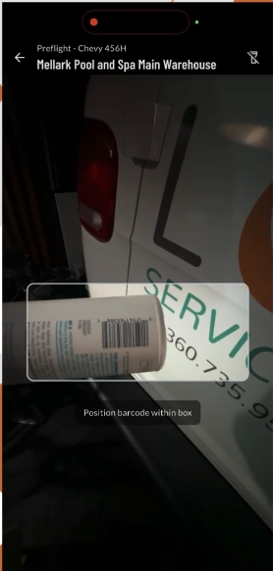
- Barcode Scan: You can use the Barcode icon to open a barcode scanner. This allows you to quickly scan the UPCs for the SKUs you wish to add instead of tapping each SKU individually.
- When all SKUs have been picked, the LOU Service Mobile App will move all the items to the Picked tab and you’re ready to click Done to complete Preflight.
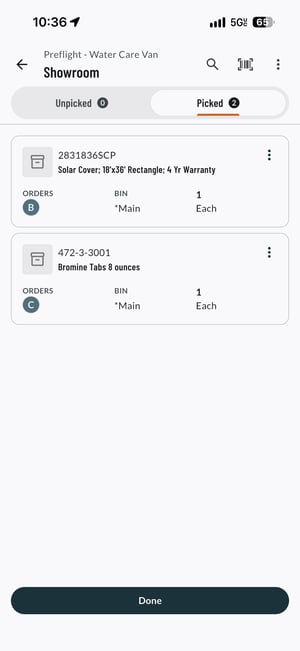
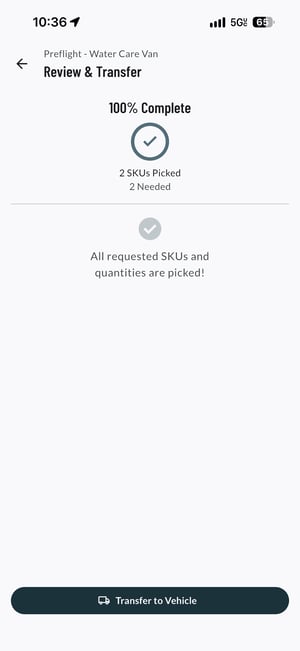
- Vehicles as Stock Sites: Preflight will guide you to Transfer to Vehicle.
- Vehicles are not Stock Sites: Preflight will guide you to Complete Pick.
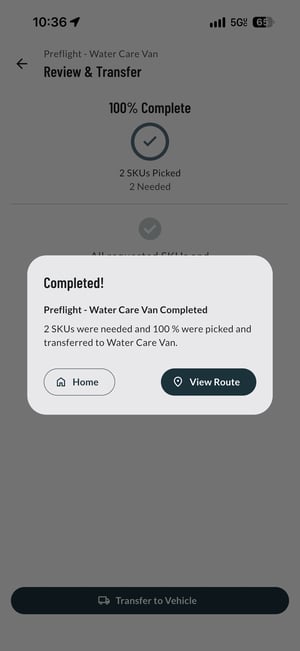
- Once either Transfer to Vehicle or Complete Pick is clicked, the LOU Service Mobile App will prompt you to View Route or go Home.
Postflight
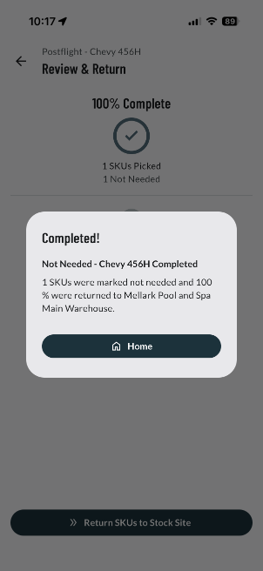
At the end of your day, you may need to return SKUs that were not needed back to the Stock Site from which you got them during Preflight. That’s where Postflight comes in!
This feature works just like Preflight, just in reverse.
Over the course of the day, as your service techs have used the LOU Service Mobile App to mark SKUs Delivered or Not Needed, those SKUs marked Not Needed can be returned to a Stock Site at the end of the day.
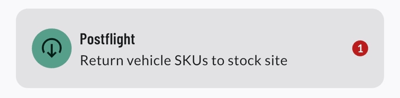
- Tap Postflight – there will be a red number on the button indicating how many SKUs need to be returned.
- Select the Stock Site Card to choose which Stock Site you want to return the SKUs to. If you have many Stock Sites, you may need to scroll. You can return SKUs to multiple Stock Sites, if needed. There may be situations where you only want to return certain SKUs to one Stock Site and then return to the previous menu to select a different Stock Site to return additional SKUs.
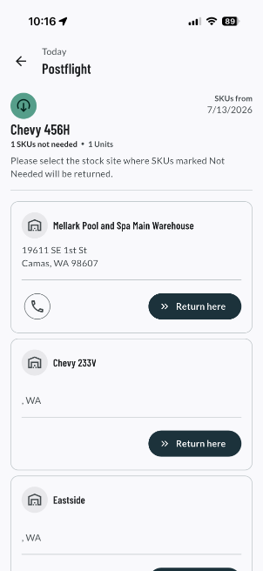
- Select the SKUs you want to return or use the button at the bottom to return all SKUs in the list.
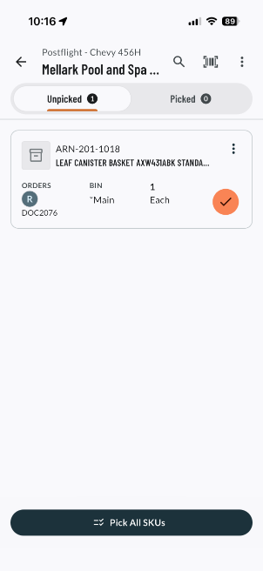
- Barcode Scan: You can use the Barcode icon to open a barcode scanner. This allows you to quickly scan the UPCs for the SKUs you wish to return instead of tapping the SKU.
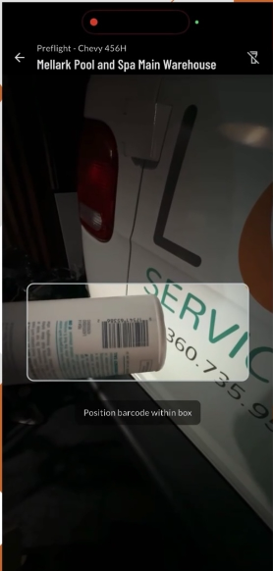
- Barcode Scan: You can use the Barcode icon to open a barcode scanner. This allows you to quickly scan the UPCs for the SKUs you wish to return instead of tapping the SKU.
- When all SKUs have been picked, the LOU Service Mobile App will move all the items to the Picked tab and you’re ready to click Done to complete Postflight.
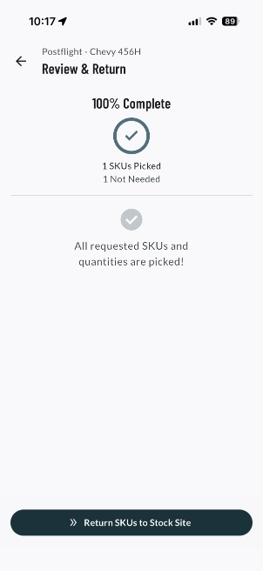
- Vehicles as Stock Sites: Postflight will guide you to Return SKUs to Stock Site from the Vehicle.
- Vehicles are not Stock Sites: Postflight will guide you to Complete Pick.
- Once either Return SKUs to Stock Site or Complete Pick is clicked, the LOU Service Mobile App will prompt you to return Home.