
With the LOU Service Mobile App, adding SKUs to an Order or searching for a SKU in Inventory is as easy as
Tap, Point, Scan!
You can use your device’s camera to quickly scan a UPC Code to search your Inventory or add it to an Order.
Add SKUs to an Order
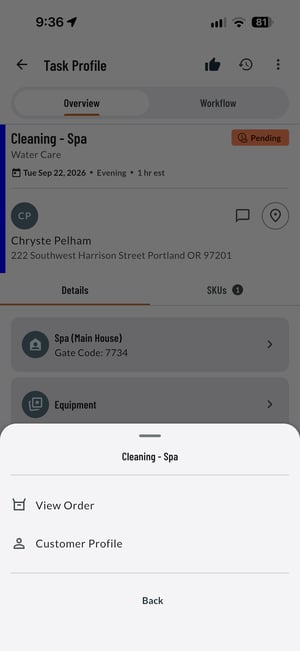
- From the Task Profile in the LOU Service Mobile App, tap the Kebab
 in the upper right corner.
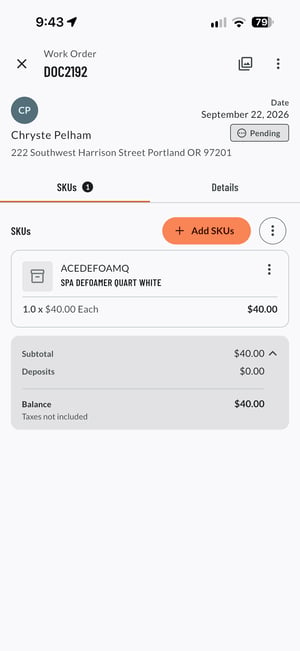
 - Select View Order
- Tap orange + Add SKUs button
- Tap the Barcode icon in the upper right
- The camera on your device will open. Aim the camera at the barcode you want to scan. Make sure you are in a well lit area.
- If the UPC is associated with a SKU in your Inventory, the SKU will be added to the Order.
Search Inventory By Scanning
- Tap Inventory on the bottom menu bar.
- Tap Search Company Inventory
- Tap the Barcode icon in the upper right
- The camera on your device will open. Aim the camera at the barcode you want to scan. Make sure you are in a well lit area.
- If the UPC is associated with a SKU in your Inventory, the SKU Profile will open. This information can not be updated in the LOU Service Mobile App.
.png?width=300&height=652&name=File%20(32).png)