<img height="1" width="1" style="display:none" src="https://www.facebook.com/tr?id=373853919636779&amp;ev=PageView&amp;noscript=1 https://www.facebook.com/tr?id=373853919636779&amp;ev=PageView&amp;noscript=1">
Skip to content
English
  • There are no suggestions because the search field is empty.

LOU Service Mobile App


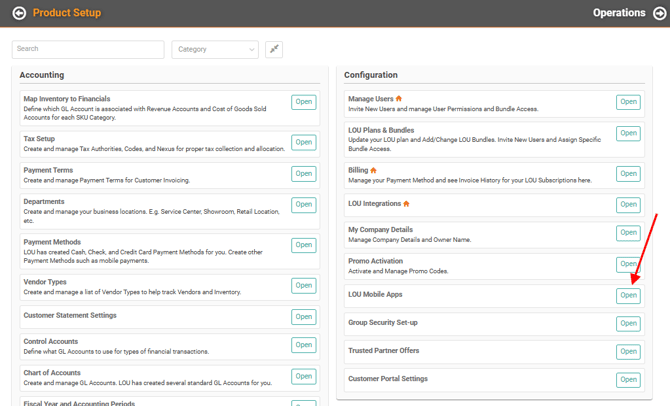
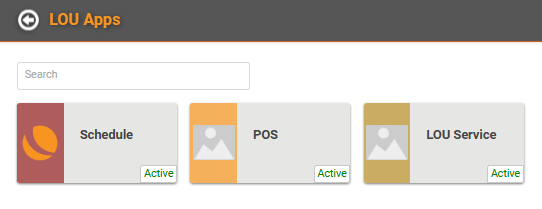
Go to Setup / Configuration / LOU Mobile Apps / LOU Service

Jump to:

Registration

New Device - Sign In Screen


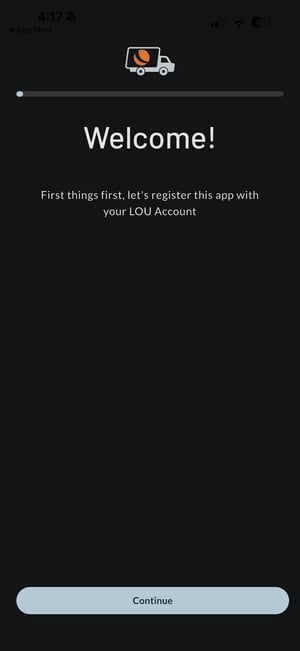
First things first - Let’s get your device registered by connecting your LOU App with your LOU Account!


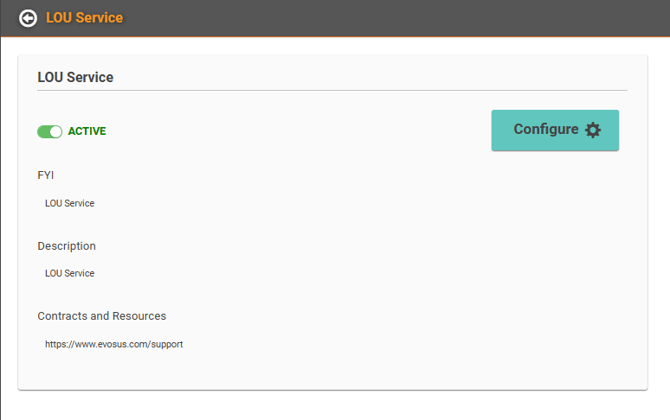
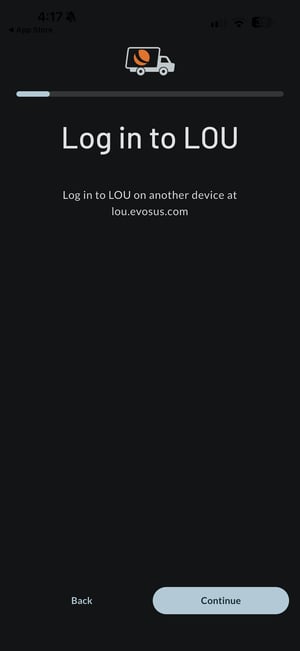
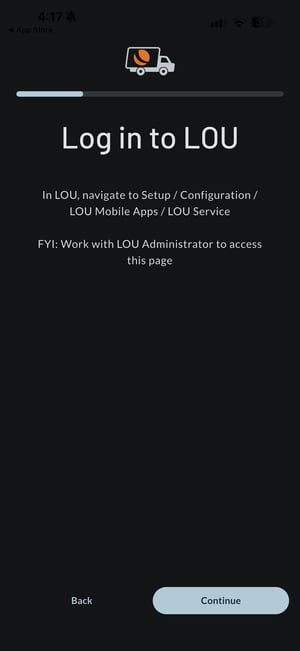
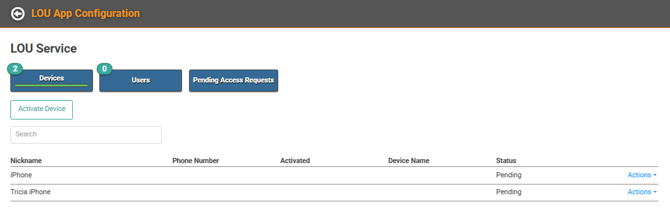
Open lou.evosus.com on a separate device and navigate to Setup / Configuration / LOU Mobile Apps / LOU Service.


REMEMBER! Only your LOU Admin can access the LOU Service page.


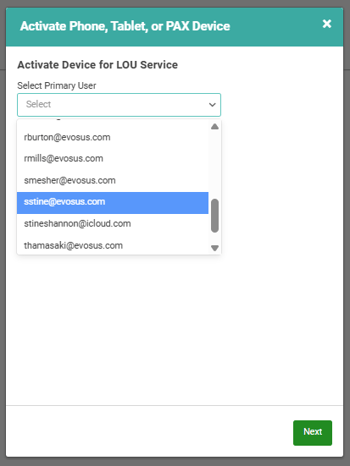
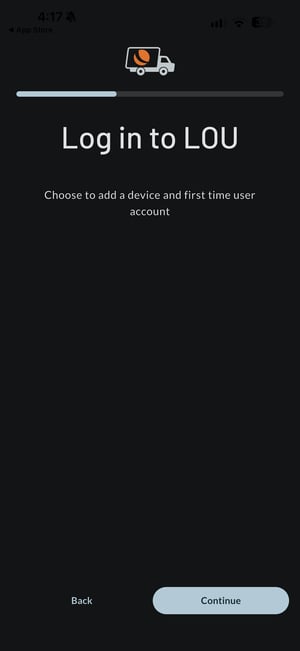
In LOU Service (on LOU Web), click which will take you to the Activate Device for LOU Service page to add a device and first time user account. 

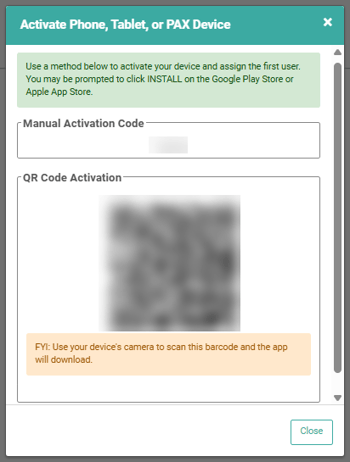
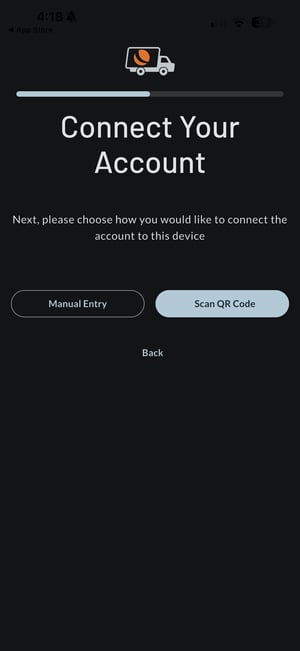
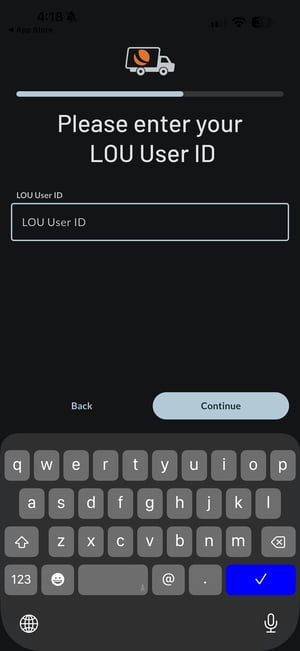
Once you have selected the User and Named the Device, click .  The next screen will give you a Manual Activation Code as well as a QR Code Activation.  You can use your device’s camera to scan the QR Code barcode or enter the Manual Activation Code.


IMPORTANT!

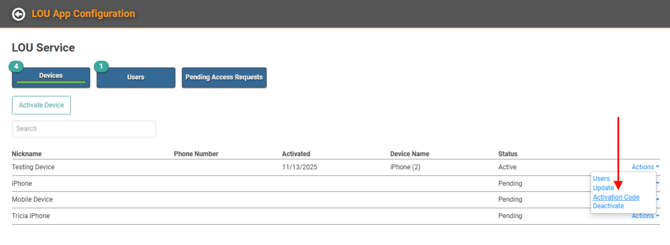
You will need a new Manual Activation Code per device.  If a Code is reused, you will see a warning message. You will be given the option to Override and use the Code on the new device but the old device will be disconnected. Once the 6 digit code is entered, LOU will automatically validate and log in.  If a digit is incorrect, you will see an Invalid Code warning in red.  If you have forgotten the Manual Activation Code, you can find it again in Setup / Configuration / LOU Mobile Apps / LOU Service / Configuration.  Right click on Actions for the device you need to view and click Activation Code.


Congratulations - your device is Registered!


Now that the device has been added, you will have a list of all Devices and their Status on the LOU App Configuration page. (Setup / Configuration / LOU Mobile Apps / LOU Service / Configuration)

IMPORTANT! 

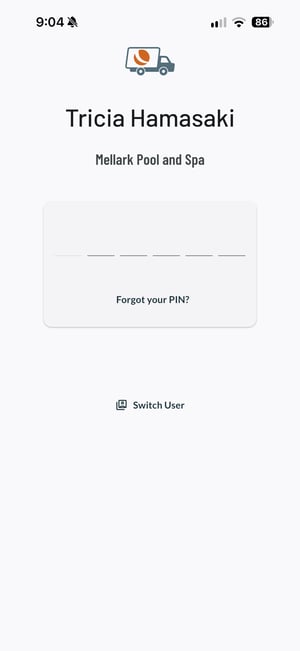
If a user is using a device that has already been registered with someone else, the log in page will default to the last Registered User that was signed in.  You will need to Switch Users and enter a new Manual Activation Code


PIN Entry Screen

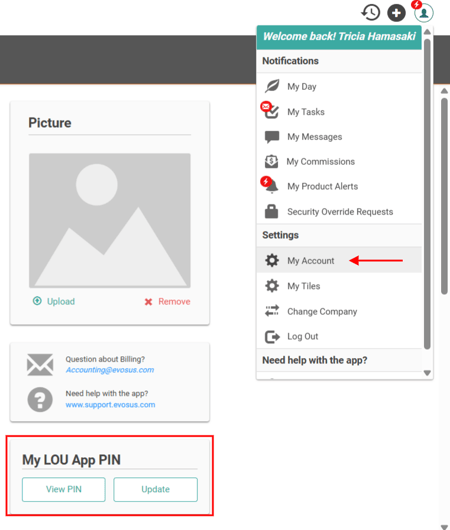
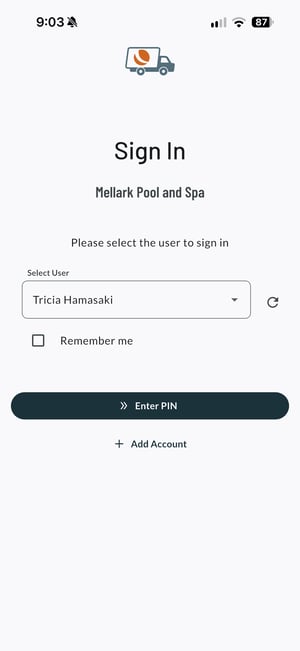
Yay! You are ready to log into the LOU App.  You will need your PIN, which you can find in LOU Web thru the Profile Icon   > My Account > View PIN.  If you can’t access LOU Web, you can click Forgot my PIN and it will be emailed to the email address that was used to register the device.
       

Home (Dashboard)

Welcome to your LOU App!

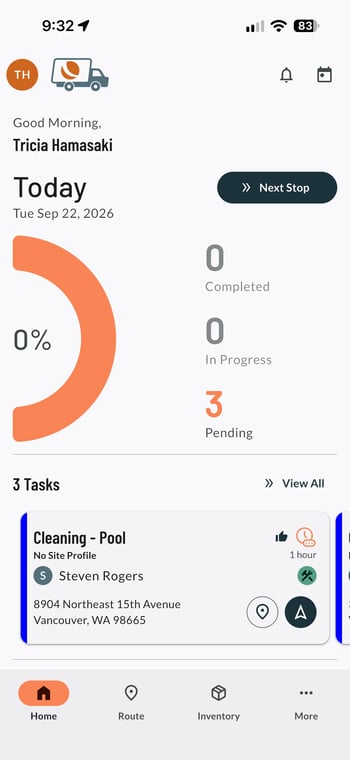
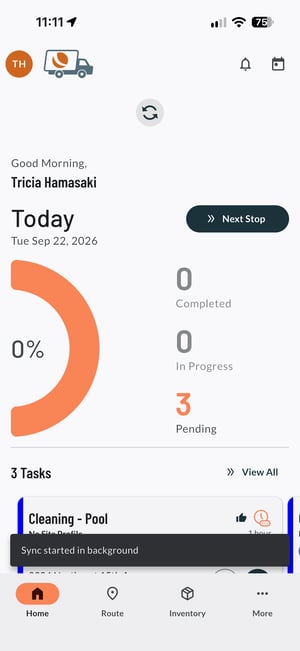
Once you have entered your PIN you will be automatically logged in and taken to the Home (Dashboard) that will default to Today and will display a greeting message - “Good Morning / Afternoon / Evening, {User Name}”.

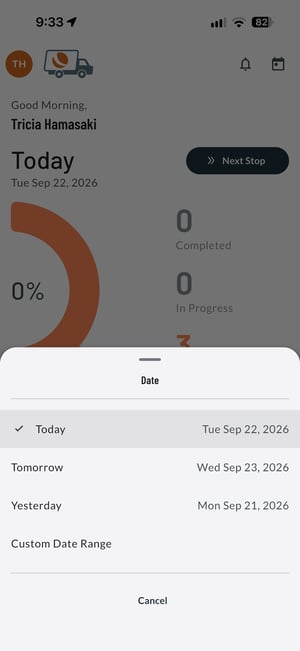
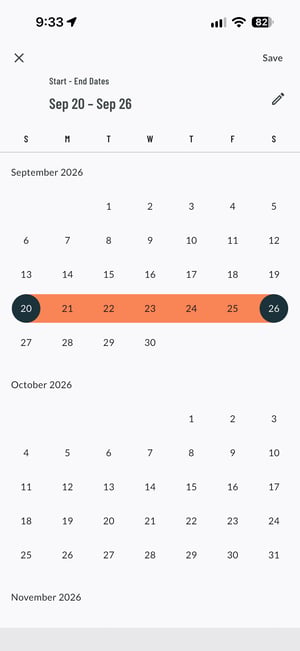
To change the date or date range displayed, click .  The Date screen will display from the bottom of your screen and you will be able to look at Today, Tomorrow, Yesterday, or a Custom date range.      


Progress Ring

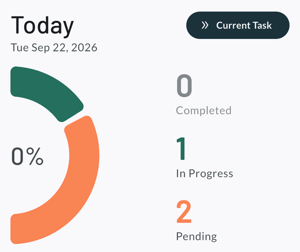
Under the date/ date range chosen is the Progress Ring.  This is reflected in three segments:

  • Completed (Primary Container): Blue-Grey color
  • In Progress (Tertiary): Green
  • Pending (Secondary Container): Orange

Note: Changing the date/ date range will update the Progress Ring and Task section to reflect the tasks for the new date/ date range.  Date range task counts are cumulative.  If you want to show a Task completed in the app, right now you need to complete the Task in WEB, as the check out is not hooked up in the app yet.  If the date/ date range has no scheduled tasks assigned to the user, the Progress Ring will display in an empty state.

Tasks - View All


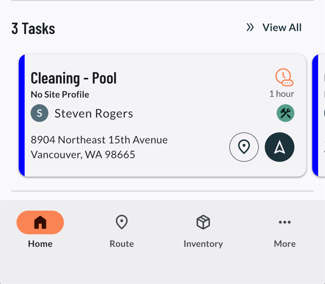
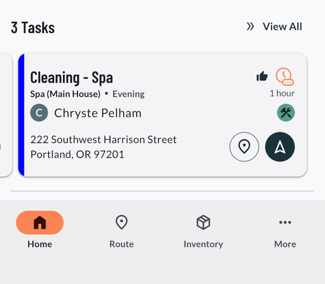
When you tap View All, you will see what is called the Task Carousel and each Task is called a Task Card.

  • If a single date is selected, View All will show a list view in the Route module.  All tasks for the selected date are displayed.                                                                                                                                                               

  • If you choose a range of dates (multiple days),  View All will show a list of all Tasks for the selected date range.                                                                                                                                                                            


Each Task Card contains the following information:

  • Task Type
  • Site Profile
  • Timeframe
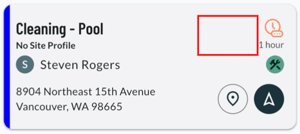
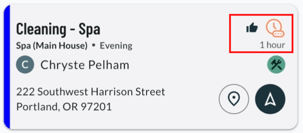
  • Thumb Up icon = Confirmed Task
    • If the icon is hidden, the Task is not confirmed.
  • Task Status
    • Pending         
    • In Progress   
    • Paused          
    • Complete
  • Estimated Check In duration or Actual Check In duration or Live Check In Timer
    • Pending       
    • In Progress
    • Paused        
    • Complete   
  • Customer Name
  • Customer Service Address
  •   Asset : if scheduled on Task
  •   View on Map
    • This button navigates the user to the routing module (Map View).
  •   Navigate
    • This button navigates the user to the routing module (Map View) and begins navigation to the Task address.
      • Once you use this button, the routing module will reflect the date that the selected task is scheduled.
      • You can search by Customer Name, Task Type and Address.

Task Cards are sorted in chronological order (defaulted to first scheduled task on first date of date range) with each card grouped by the date/day of the task.  When a User taps on the Task Card, they will be taken to the Task Profile.

When the User is checked into one or more tasks, the Carousel will default to the first scheduled in progress task.  If no task is currently In Progress or Paused, the Carousel will default to the Next Pending task.  Also while the User is checked into one or more tasks, the Next Stop button will change to Current Task.  Current Task will navigate to the task profile that is defaulted (most recent checked in task, if there are multiple tasks).

Vehicle and Assets

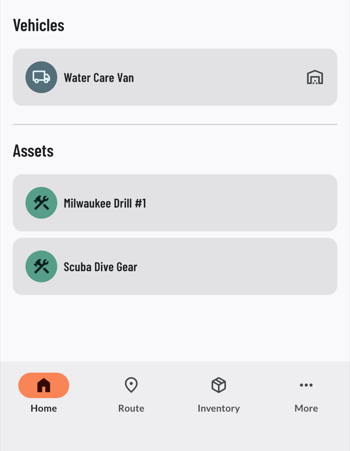
Following the Task Card, Vehicles and Assets will be listed if they are added to the Task for the selected date or date range.  This information is for display only and any changes will need to be made in LOU Web.  Vehicles that are tied to a Stock Site will have a icon next to it.   Tasks that have Assets (Equipment) that will be needed on site will show a icon on the Task Card.


Task Profile

Now let’s take a look at the Task Profile.

  • Check In button
  • Confirmed, Task History and Task information Icons
  • Overview and Workflow Tabs


1.  Check In Button

When you have arrived at the Task address location, you will need to Check In using the button on the Task Profile.  This will change the status of the task from Pending to In Progress.

2.  Icons

  • Confirmed / Not Confirmed Icon     

    The Confirmed Icon tells you if the task is confirmed.  If the icon is filled, the task has been confirmed.  If not, it is still unconfirmed.  Tap on the icon to change status and a green message bar will appear.  Any updates will be reflected in LOU Web.


    Confirmed icon = “Appointment confirmed” message


    Not Confirmed icon = “Appointment not confirmed” message

  • Task History
    If the Task is In Progress, Paused or Completed, you will not be able to change the Confirmed status (clicking the Thumbs Up will be disabled).
The Task History Icon  will open a bottom sheet that shows:
    • [Task] History
      • Total Time (Rounded)
      • Personnel
      • Date
      • Time Departed
      • Task Status

When you click on the Task History bottom sheet, the Work Order Outcome details page will open.

    • Work Order Outcome - [Document Number]
      • Client Name/ Address
      • Date and Status
      • Task Type / Division
      • Notes to Customer (disabled currently in App) - Read Only
      • Notes for Next Visit (disabled currently in App) - Read Only
      • Personnel Name
      • Arrived Time / Departed Time / Total Time
      • Back button to go back to the History sheet
      • Send Door Hanger to message customer 

Door Hanger can be sent from the Completed Work Order task, just tap “Send Door Hanger”. A quick message will be sent to the customer associated with the order, adhering to the Customer Messaging preferences that is set in LOU Web.  If successful, you will get a “Door Hanger sent” message.  If it failed, you will get a “Door Hanger failed to send”.

REMEMBER!

Send Door Hanger button is disabled while in Offline mode.  All messaging is disabled when offline.

If no Task History exists, “No work item or outcome found for this task”


  • Task Information  

    The Task Information Icon will open a bottom sheet with the name of the Task where you will be able to View Order or view Customer Profile.  

  • View Work Order    
    • Icons
      •     Document Image : Images that are on the Work Order in LOU Web.  Work Order > Images > Document Images
      •   Work Order Information:  Opens bottom sheet with links to the following 
        • Interview: Previously completed Interviews will be listed here. These are customized lists of questions users should ask Customers to gather important details and information that will help troubleshoot issues in the future.  Setup Interview Types and Create Interviews here.                            
        • Completed Checklists:  Here Checklists that were completed previously will be listed.  Checklists can help you and your Service Techs answer questions during scheduled Tasks - a Checklist for you and your Techs!  Create Checklist Templates and the best way to Use Checklists.                
        • Message Customer: From here you can send a drafted message for a Customer Portal Link or to let the Customer know you are On My Way; you’ve Arrived; and that you have Departed.
        • Customer Profile: Customer information and quick access to Customer Profile information related to the Task and Work Order.  Data is sync’d from LOU Web when this page is opened but you can refresh manually by pulling down from the top of the page.                   
          • Customer name, Customer number, Customer Type
          • Balance Due
          • Portal Link - Quick Send Button . Preferred contact method is from LOU Web.
          • Phone Number - If a phone number exists on the Customer Profile, a Phone Icon will appear next to the Message Icon .  It will be hidden if No Phone Number exists on the Customer Profile.
          • Email - If no email exists on the Customer Profile, “No Email Address” message will be displayed
          • Service Address - If no address exists on the Customer Profile, “No Address” message will be displayed.  Note: If the address is not Geo-Located, a Icon will be displayed and the View on Map button will be hidden.
          • View On Map - Open Map Shortcut to Google or Apple Maps
          • The Message Icon opens the “Send a Quick Message” bottom sheet.  From here you can send a drafted message for a Customer Portal Link or to let the Customer know you are On My Way; you’ve Arrived; and that you have Departed.                                               
          • Images - View/ Search images attached to the Customer Profile
          • Site Profile - View/Search Site Profiles attached to the Work Order
          • Equipment - View/ Search Equipment attached to the Work Order
          • Checklists - View/Search Completed Checklists
          • Water Test History - View chart of Water Tests
          • Interviews - View/ Search Interview History
    • SKU Tab
      You’ll see all the SKUs associated with this work order as line items with quantity, individual price and subtotal per SKU.  SKUs included in a Kit will be rolled up into a single line but you will have an option to “View SKUs” so you can see each individual line item within the Kit if you want.  Work Order Comments will be at the end of the list followed by the Subtotal for the whole Work Order with the note “Taxes not included”.
      •  : Here is where you can add any SKUs for items that are needed after you are on-site.                                 

      • : Add a Comment to the Work Order
      • SKU Card                                                      
        • SKU Type Icon
        • SKU Number
        • Description
        • Amount
        • Price per item
        • Unit
        • Subtotal of Item
        • : SKU bottom list                 
          • Update Line Item                     
            • Amount
            • Price
            • Subtotal
            • Apply Discount
          • SKU Profile: Information is static and can’t be edited in LOU App.
            • Images attached to SKU profile : you can search the gallery and download images to your device (one or multiple at a time)
            • SKU Type Icon
            • Number Available
            • Price
            • UPC
            • Type
            • Default Vendor
            • Manu
            • Ext Description
            • Stock Sites : View Stock across all sites
          • Delete Line Item : You can delete the SKU from the Work Order  
    • Details Tab

      From this tab you can see all Task Schedule associated with this Work Order, Equipment, Work Order Outcomes and any Comments/Notes added.
      • Task Schedule
        • Number of Tasks and Status (Pending and Completed status only)
        • Task Type
        • Division
        • Site Profile : If no profile is linked, “No Site Profile” text will be displayed
      • Carousel of Tasks
        • Task Status Icon
        • “Unassigned” / Name and Initial Icon of Assigned Personnel
        • Date
        • Estimated or Actual Time Duration
      • Equipment > Linked Equipment > Equipment Information (view only)
      • WO Outcomes : Work Order Outcomes - Completed Work Order information can be viewed here and a Door Hanger can be sent.
      • Notes : Click on the note to Update or add additional notes.  “Notes updated successfully” will appear after Save is used.
        • Displays to Customer : Notes visible to Customer
        • Internal Notes : Internal Notes


Overview Tab

On the Overview Tab you will see:


  • Task Status and Timer Row
  • Client Information Row
  • Details Tab
    • Site Profile linked to the Work Order that contains site specific information (if there is one)
    • Equipment associated with the site (if there is any)
    • Primary Personnel assigned to the Task which will be listed alphabetically (including any helpers if necessary)
    • Vehicle(s)
    • Comments and/or Notes
  • SKUs Tab
  • Task Status and Timer Row 


    In Progress

    Once Check In is tapped within the Task Profile, the Timer will start immediately and the Status will update from to .  

                                                                     
    Cancel Check In and Check Out buttons will now be at the bottom of the Task Profile.                                                                  
    And a Pause button will appear next to the Timer.                                                                  

    Paused

    Tapping Pause will change the status from In Progress to Paused and the Pause button will now display Resume.                           

    Once is tapped, the Task will return to In Progress and the Live Timer will pick up at the time that the Task was paused.

    While a Task is Paused, the Live Timer  will track the amount of time paused.  

Example: 

User pauses the Task for 3m 2s, then resumes the Task

  • The In Progress timer will resume from the time it was paused.
  • If the user pauses again, the Paused timer will pick up from 3m 2s and continue tracking paused time
  • When the task is paused, the Task Carousel card on the Dashboard will have a paused icon indicator and the timer will be displayed.

REMEMBER!

While a Task is Paused, access to workflow will be disabled to ensure accurate logging of work time.  If Workflow is tapped while a Task is Paused, a dialogue prompt will direct users to Resume the Task or return to the Task Profile.

  • Client Information Row


    The Message Icon opens the “Send a Quick Message” bottom sheet.  From here you can send a drafted message for a Customer Portal Link or to let the Customer know you are On My Way; you’ve Arrived; and that you have Departed. 


    The  icon will take you to the Route Map View that will include a client information card.


  • Details Tab
     
    If the Site Profile is linked to the Work Order, the Site Profile will show and you can tap on it to view details.  


    To link the Site Profile to the Work Order, you will need to go to the Request section and Update.  


    If Equipment is associated with the Work Order, there will be a badge showing how many are linked or a message that there are none linked.


    If Equipment is on the Client Profile but not associated with the Work Order, you will need to Update the Equipment section and Refresh the app once it is linked.


  • SKUs Tab

    SKUs that are associated with the Work Order will be listed on the SKUs tab, with quantity, price and total (not including tax).   You can update the existing SKU line item; view the SKU profile and adjust if necessary; and/or delete the SKU line item if necessary.  


Workflow Tab

REMEMBER!

You can not view the Workflow without checking in.  A “Please Check In” will pop up as a reminder.


If you have already Checked In, the Workflow tab will navigate you to the Workflow landing page.  

  • Water Test
    Under the Workflow Tab, you will be able to access the Water Testing.  You will automatically be taken to enter a new reading.  You can jump between Site Profiles using the dropbox or view the History of readings for any Site Profile if necessary.
    • Readings

      Readings show Alkalinity, Free Chlorine or pH and you will use the slider or will manually enter the reading which will appear in green font if the reading is within the range it should be or orange if too low or too high.

      Note : if you accidentally add a reading, use to clear the reading.  It will not show up on the Door Hanger sent to the client.                                                                                       

    • Dosages

      Dosages shows a long list of tests associated with the Site Profile and you will use the slider or will manually enter the reading which will appear in green font if the reading is within the range it should be or orange if too low or too high.                                                                                                                       


REMEMBER! 

Values are rounded to 2 decimal places.

    • Click to view the Site Profile History                                                                         

      Use to bring up the Date Range bottom sheet you can use to change your view.  (“6 months” is the default)                                                                                       

      If you are taking multiple tests, use the back arrow to go to the Water Testing list page and click .                                                                                                                       
      You can also delete a Water Test from this page using the .  A warning will appear to check if you are sure you want to delete the Water Test and you will have a chance to Undo the deletion one last time when a deletion confirmation message appears.                                                                                                          

  • Checklists


    Checklists are associated with Task Types so the way this page looks can vary depending on the task.  Here is the link to the support article on creating Checklist Templates.  


    You will be able to search Checklists by Checklist Names, Personnel Name, Order Type or DocID, but the page is sorted alphabetically.  


  • Add Photos
    Tapping “Add Photos” takes you directly to the device’s camera.  You can choose to take a new Photo or Video or pick an existing one from your Photo album.  Videos will record a max length of 3 minutes.  


    Once the photo is taken, you will be taken to the Image Details bottom sheet where you can Add a Caption; note if the image is a “Before” or “After”; and add a Description.


    All images will be held in Task Images.  

    In the upper right corner of the page, you can use the to Search text associated with the image or you can use the to check multiple images if necessary


    Each image will have a in the upper right corner of the image thumbnail which will open the image bottom sheet.  Here you will be able to go back and edit the Image Details; Annotate (Add Text, Draw and Crop or Rotate) on the Image; Download the Image; and Delete the Image.

  • Notes
    • Customer Notes : these are displayed on the Door Hanger, visible to the customer.
    • Next Visit Notes : Notes regarding the next visit.  The checkbox below the notes denotes if you want the customer to get the note with their Door Hanger or not. Default is that the note will be shared with the customer.
    • Message Dispatcher : Internal note for the company Dispatcher.


Route (Dashboard)

Icons

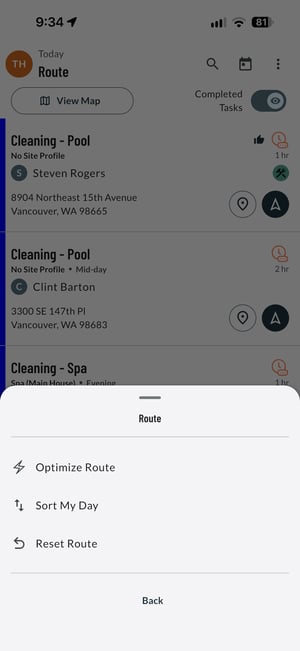
To open the Overflow menu, tap the Overflow icon button (3 vertical dots) that appear in the top app bar. 

In the Overflow menu you can:

  • Optimize the Route
  • Reorder Tasks
    • Tap to open the Reorder Task screen             
    • Click on the icon and hold to drag the tasks into the route that you wish to manually set.
    • The icon will optimize the route.
    • The icon will reset the route to what was previously suggested in LOU Web.
    • Save will save the new task order.
    • Cancel will abandon the reorder and return to the map or list view.
  • Reset the Route

View Map

When a Task is In Progress or Paused, the Route card and item list has an In Progress indicator and live timer displayed.

If multiple Tasks exist for one Stop, the following priority dictates the status indicator:

  • In Progress: Live timer reflects most recent checked in Task
  • Paused: Live timer reflects most recent checked in Task
  • Pending: Estimated Duration (including completed durations as well as additional estimated)
  • Complete: Completed duration (including completed durations as well as additional estimated)

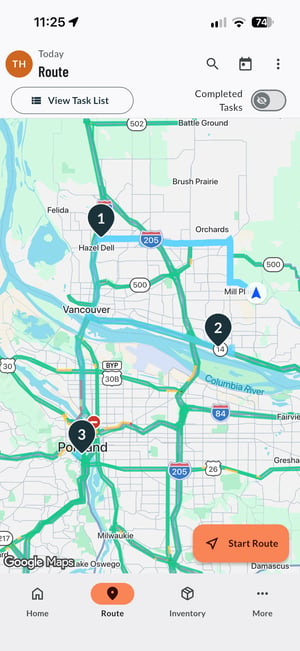
To access the Route module, tap “Route” on the bottom navigation bar.  Route defaults to an overview map view. 


Tap to navigate to the next pending task’s address.

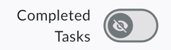
Completed Tasks will be hidden by Default but you can toggle it on to show if you choose.

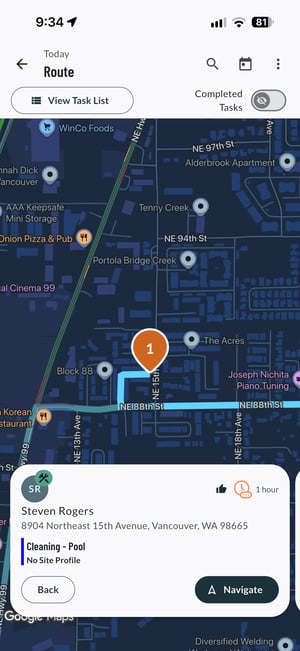
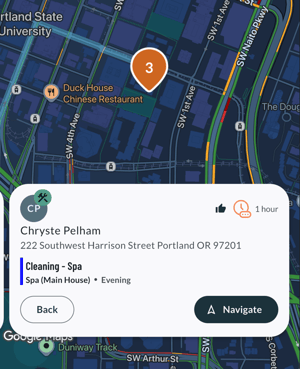
Tap on a Stop (pin) on the map to see the Stop Detail card that will show Customer and Task information.                                                                                                                                                                                                                                              

If a task is confirmed for a Stop, the Thumbs Up icon will display.  If any tasks in the Stop are In Progress, Paused or Pending, the status for the whole Stop will reflect that.  If all tasks for the Stop are Complete, the status for the Stop will reflect that.  Task durations, both estimated and actual, are totaled on the Stop card.

Example: 

60 min Task + 15 min Task + 120 min Task = 3 Hr 15 min total Stop duration


Tap to start Google Maps navigation to the address.

Tap or the back arrow at the top of the app bar to return to the Route Map


Tap on the Stop Detail card to show the task or list of tasks for the Stop.  From here you can also Call or Message the customer.

You can also do a Search by tapping the .  A search can be done by Customer Name, Task Type or Address.
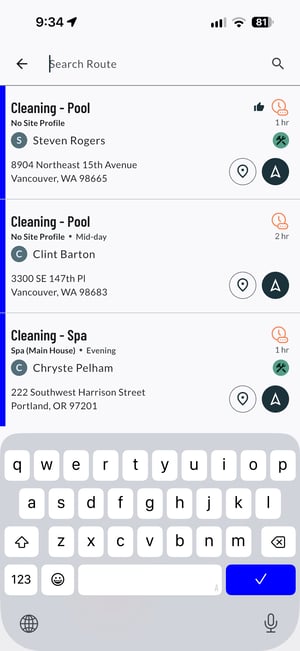
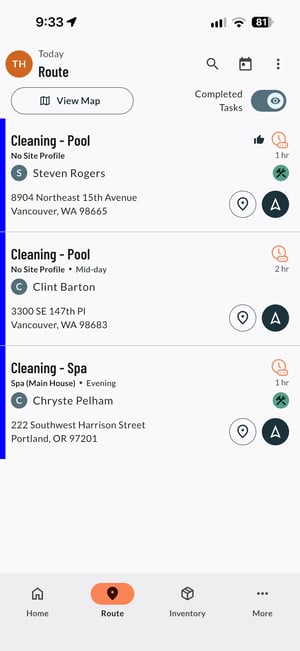
View List

Tap View List to view the route as a list instead of a map of Stops.

REMEMBER! Whatever toggle state Completed Tasks is set to will be retained when switching between Map or List view.


Use the (map pin) icon to view the task stop on a map.

Use the (navigate) icon to start navigation to the task’s address.

You can return to the Map View at any time.

You can also do a Search by tapping the .  A search can be done by Customer Name, Task Type or Address.

Navigation

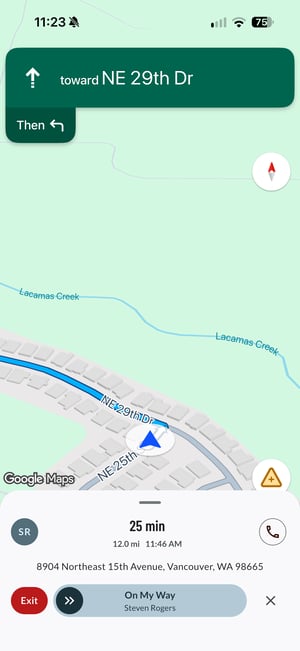
After navigation has started, a note will appear at the bottom of the app with estimated travel time, estimated arrival, the address and a Quick Swipe to be able to send an “On My Way!” notification.  Tap X to dismiss the quick message and close the note at the bottom.  If you want to exit the navigation, Tap Exit.  Use the icon to call the customer.                                                        

As you get closer to the location, a Quick Swipe message I’ve Arrived! will appear at the bottom and can be sent or dismissed.  It will then be replaced with a View Track button that will take you back to the Task Profile.


Inventory (Dashboard)

The Inventory Dashboard gives you insight to the company inventory at the tips of your fingers.  You can Search by SKU name or word within the name and you can also Filter by Quick SKUs, Category, SKU Type, Vendor and Manufacturer.  Within each filter, you will also be able to search so you don’t have to scroll through the entire list.


Each SKU line item will open the SKU Profile.  All information is static and can’t be edited in the LOU App.

  • Images attached to SKU profile : you can search the gallery and download images to your device (one or multiple at a time)
  • SKU Type Icon
  • Number Available
  • Price
  • UPC
  • Type
  • Default Vendor
  • Manu
  • Ext Description
  • Stock Sites : View Stock across all sites


More (Dashboard)

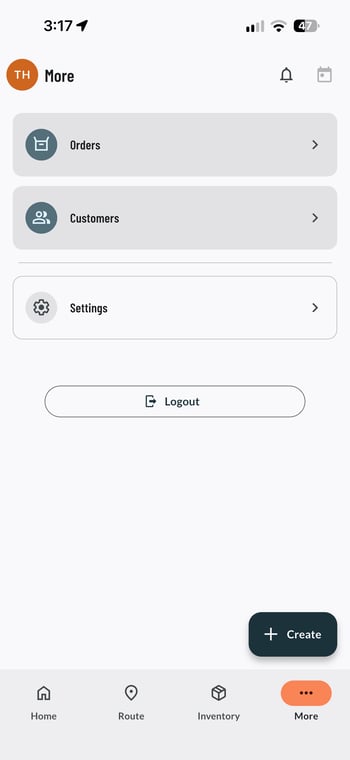
The More Dashboard holds company level Order and Customer information as well as Settings for the user Device.

Icons

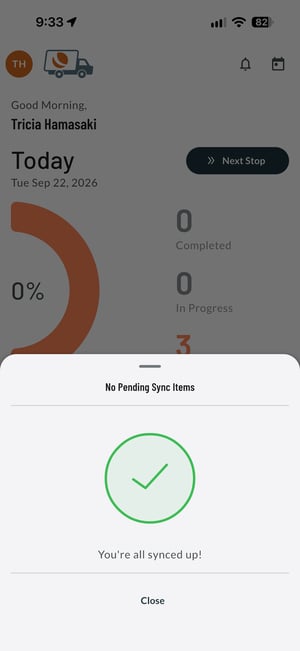
Pending Sync Items                               (Currently Disabled)


Orders

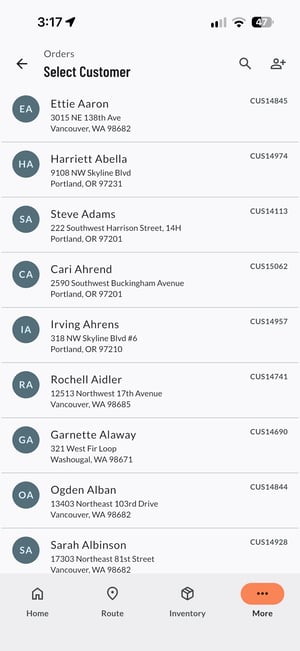
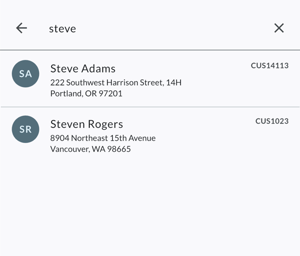
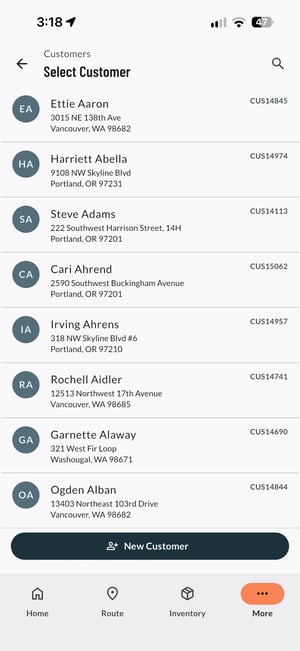
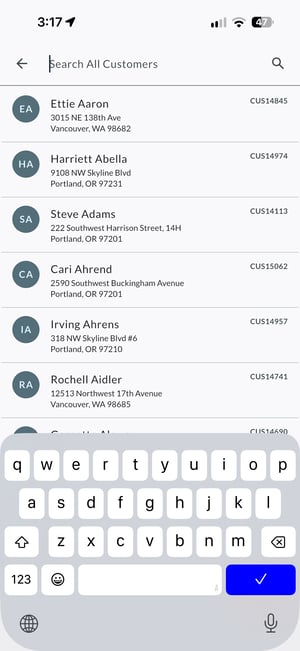
The Orders page shows an alphabetized Customer list that you can Search through or Create a New Customer .  

If the customer exists, you can click on the Customer Card to take you to the Customer Orders page.  Searches can be done by Last Name, First Name, Address, Email, Phone Number and/ or Customer ID Number.

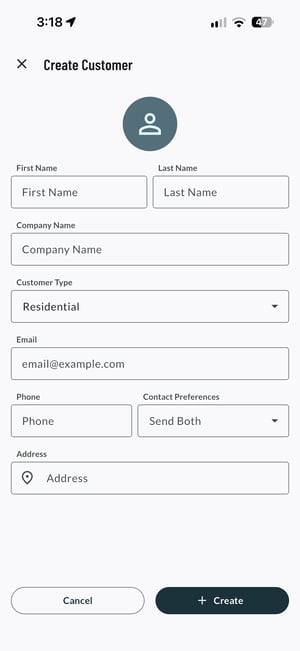
Creating a New Customer (this can create Duplicates so be careful the customer does not already exist)

  • First Name
  • Last Name  (can be blank if there is a Company Name)
  • Company Name (can be blank if there is a Last Name)
  • Customer Type
  • Email
  • Phone
  • Contact Preferences
  • Address

Customer Order

Icons

From here you can Search through Orders ; Create an Interview ; or look at Customer Information

Create an Interview:                                                Customer Information:    

Customer Profile:                                                     Send a Quick Message:


Date 

The default is Anytime but can be changed to Last Month; Last 6 Months, Last year; or Custom Date Range.

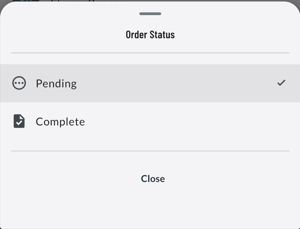
Pending/ Complete (Order Status) 

Choose to view Pending or Complete order.  This will show all Orders regardless of Order Type.

Order Type Filters

You can filter to show Work Orders, Sales Orders, Estimates and/or Opportunities.

Work Order View     

(Link to in-depth overview of Work Order Page)


Sales Order View 

Sales Order is almost identical to Work Order with the exception of the Details page will not show Equipment or Work Order Outcome.

(Link to in-depth overview of Work Order Page)

      • Details Tab

        A Sales Order may not have any Task Schedule information if the Customer is doing a Pickup from a Retail location and no Delivery Task needs to be scheduled.


Estimate View

      • Details Tab

        An Estimate may not have any Task Schedule information.

Opportunity View

The Opportunity View will allow you to view the Opportunity but you can not edit any information in LOU APP, you can only update information in LOU Web.

The Information Icon opens a bottom sheet with links to Message the Customer or view the Customer Profile.


Customers

The Customer page shows an alphabetized (by Last Name) Customer list that you can Search through or Create a New Customer .


If the customer exists, you can click on the Customer Card to take you to the Customer Profile.  Searches can be done by Last Name, First Name, Address, Email, Phone Number and/ or Customer ID Number.

(Link to in-depth look at the Customer Profile)


Creating a New Customer (this can create Duplicates so be careful the customer does not already exist)

  • First Name
  • Last Name  (can be blank if there is a Company Name)
  • Company Name (can be blank if there is a Last Name)
  • Customer Type
  • Email
  • Phone
  • Contact Preferences
  • Address

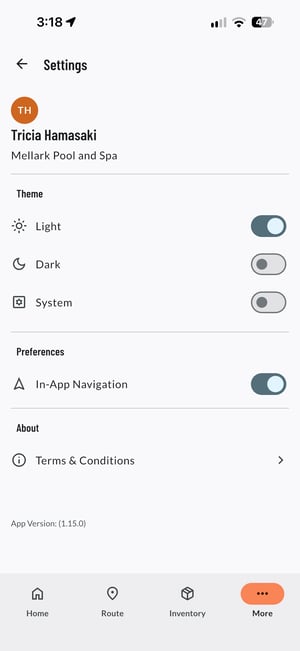
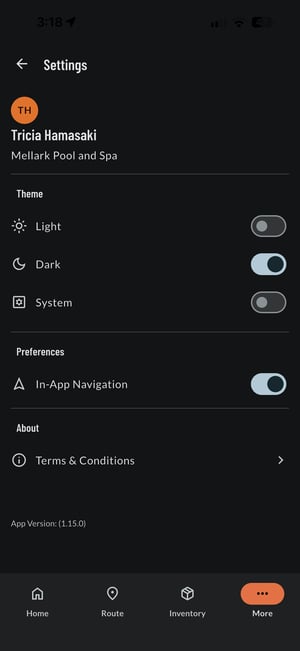
Settings

Theme

    • Light
    • Dark
    • System (Default - your Device settings)


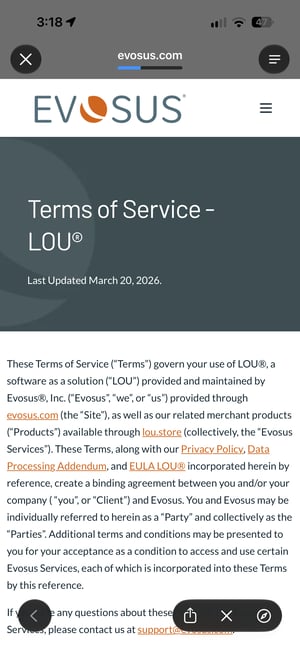
About

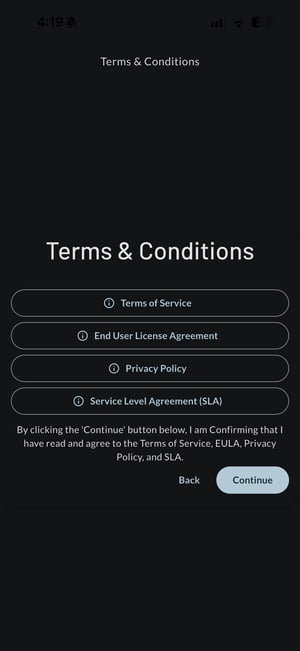
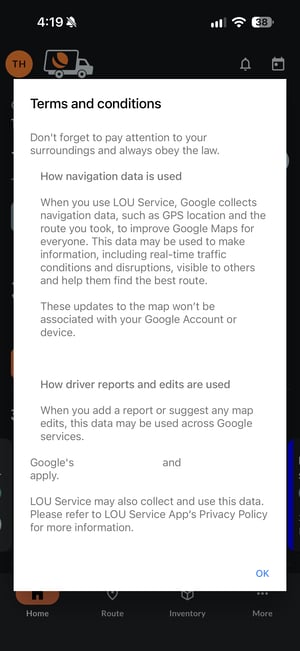
    • Terms and Conditions - Links to the Terms and Conditions Page