
Recurring Orders are a great way to take the manual work out of creating your monthly maintenance contract orders. Deposits on REOs allow you to take the full payment for your contracts ahead of time and then complete your monthly orders while applying that deposit over time.
This Feature Utilizes the LOU Tags Feature
When you Invoice an Order created by an REO with an associated Deposit, LOU will automatically apply that Deposit to the Invoice until LOU has depleted the full Deposit. When the Deposit reaches 15% remaining, LOU will add a Tag to the REO profile called reo_deposit_warning. For this reason, we recommend you create the Tag ahead of time so you can follow the Tag and be able to resolve the issue before the Deposit is reduced to zero.
Once you’ve created the Tag, everyone who will be responsible for tracking Deposits and taking action when they are running low should follow this Tag.
IMPORTANT! You must create the tag exactly as described above to avoid ending up with duplicate Tags.
System Parameters
As mentioned above, LOU will add a warning tag to the REO profile when the Deposit gets down to 15%. This is the default setting. If you want the tag to be added to the REO when a different percentage remains, you can change that setting in System Parameters.
The warning is designed to give you the opportunity to collect an additional Deposit or take any action necessary before the Deposit is 100% applied.
Go to Setup / Foundation / System Parameters and click Actions / Update on REO Deposit Warning.
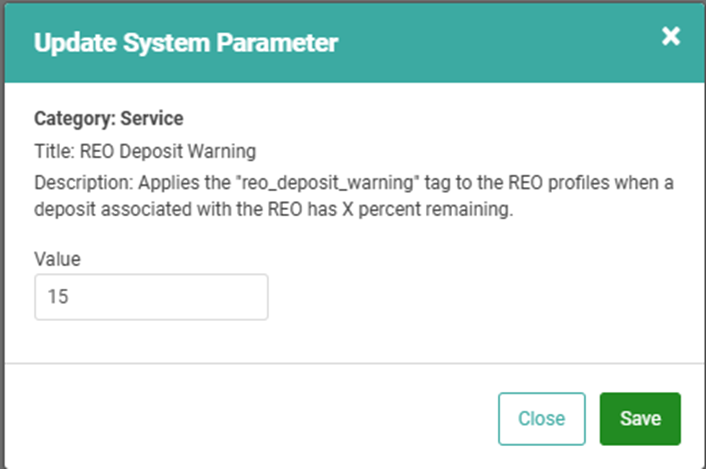
Replace the value and click Save.
REMEMBER! This warning is intended to tell you the Deposit associated with an REO is almost 100% applied. Ideally, this warning is not triggered when there is still a large Deposit amount remaining.
Take a Deposit on an REO
When you create an REO Profile you are not creating an Order. Instead, you are creating a set of configurations that LOU will use to create Orders monthly.
Whether you Invoice per Task or per Order, adding the Deposit to the REO Profile allows LOU to pull from that Deposit as you Invoice the Orders created monthly.
To take a Deposit on an REO, go to the REO Profile.
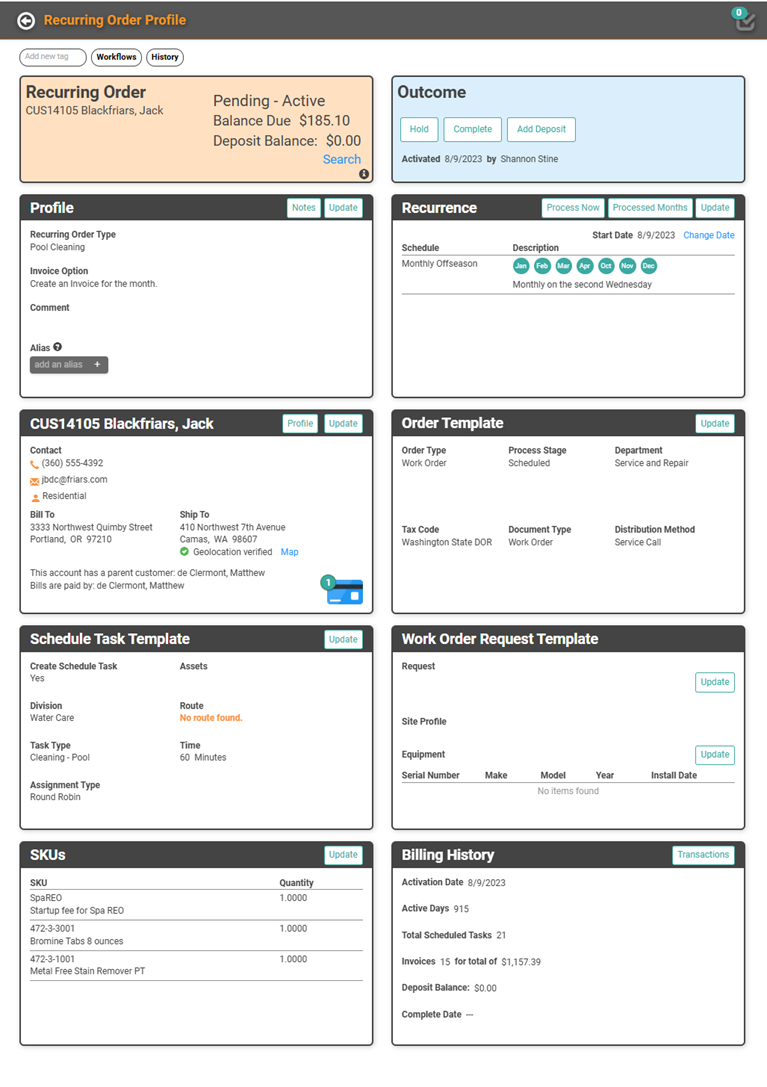
- Click Add Deposit in the blue Outcome Box.
- Fill in the appropriate Payment information.
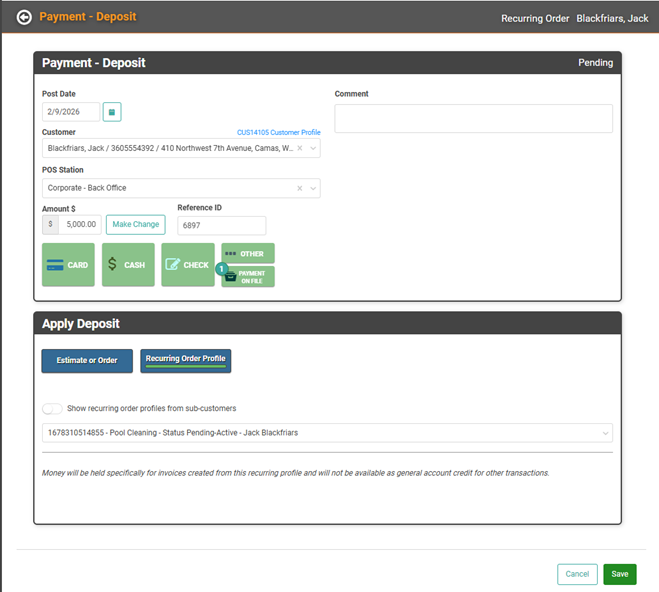
- Click Save
- On the Deposit Payment Profile, click Close to return to the REO Profile.
The REO will show a Deposit Balance as well as any outstanding Balance for Invoices created on Orders associated with this REO. In the Billing History box at the bottom of the REO you can see a history of activity, including Deposit Balance.
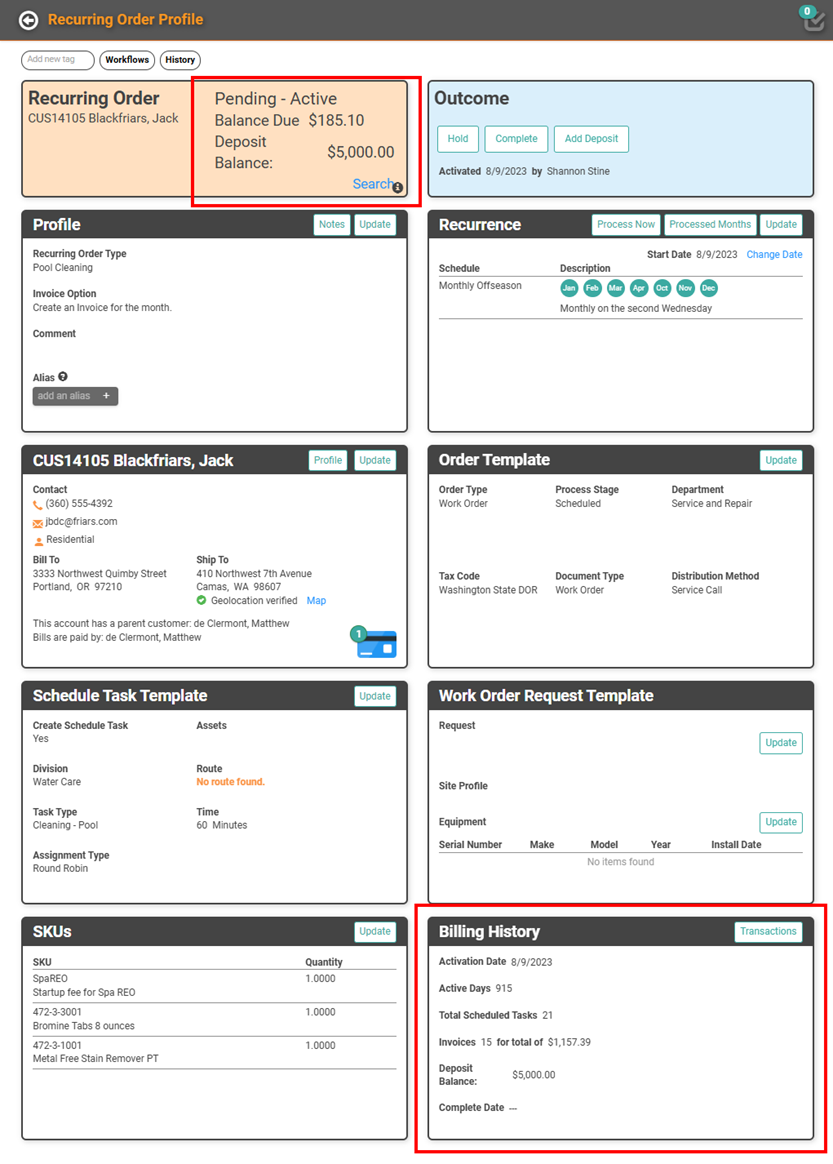
REMEMBER! Since LOU uses the Accrual Based Accounting Method, revenue is not recognized until it’s applied to an Invoice. Deposits will be Pending Deposits/Unapplied Payments until they are applied to an Invoice. To recognize revenue monthly, you must make sure you are Invoicing the Orders in a timely fashion.